How to edit your brand profile in Orchly
Set your brand name, market, language, context, and colors so every agent produces work that sounds and looks like you.
Your brand profile is the foundation every agent builds on. Fill it in once and everything Orchly writes, generates, and analyzes uses it, so the output sounds and looks like you instead of generic AI. This guide covers the Profile section in detail.
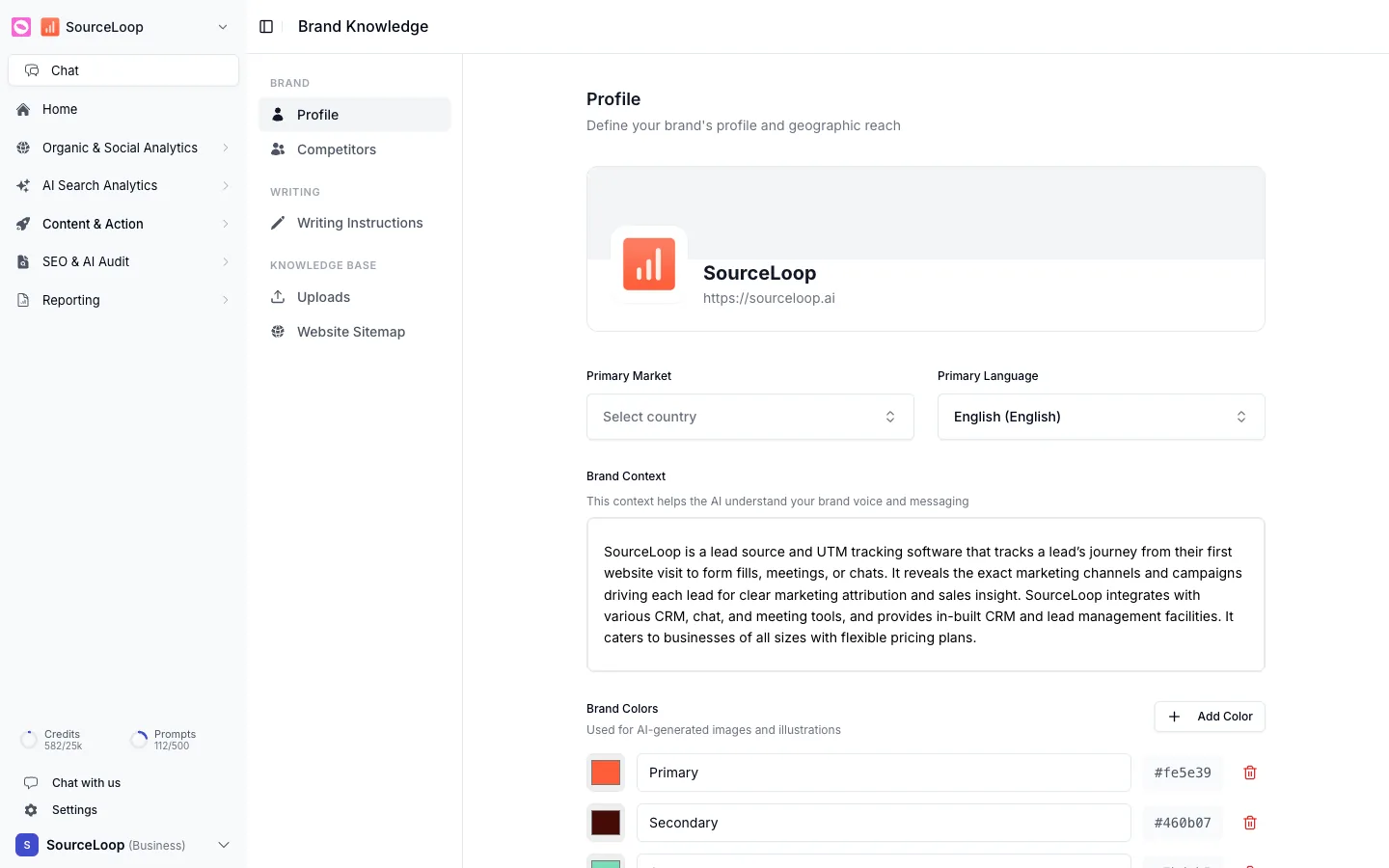
You’ll find it under Content & Action → Brand Knowledge, on the Profile tab.
Brand identity
At the top sits your brand identity card with your logo, brand name, and brand URL. Hover and click the pencil to edit them inline. These feed into reports and everything agents produce, so keep them accurate.
Market and language
Set Primary Market to the country you mainly sell in and Primary Language to the language your content is written in. These shape how agents write and how some visibility data is read.
Brand context
Brand Context is the single most valuable field on the page. It’s a free-text box where you explain what your brand does, who it’s for, and what makes it different. As the helper text says, this context helps the AI understand your brand voice and messaging.
Write it like you’re briefing a new hire: what you sell, who buys it, the problem you solve, and how you talk about it. The more specific you are, the less generic every piece of AI output becomes.
“SourceLoop is lead-source and UTM tracking software that shows which marketing campaigns drive each lead” beats “we are a leading marketing solutions provider.” Concrete details give agents something real to work with.
Brand colors
Brand Colors are used for AI-generated images and illustrations, so they match your brand. Click Add Color, set the hex value, and name it (Primary, Secondary, and so on). You can add up to five.
Profile fields save automatically a moment after you stop typing. There’s no save button to hunt for.
The rest of your brand kit
Profile is one of five sections. Round it out with:
- Competitors, the brands to benchmark against.
- Writing instructions, your voice and rules.
- Knowledge base uploads and website sitemap, your source material.