A guide to Orchly integrations
See every data source, AI model, CMS, and app you can connect to Orchly, and what each one unlocks.
Integrations are how Orchly connects to the rest of your stack: the data sources it reads from, and the places it publishes to. The more you connect, the more Orchly can see and do. This is the map of what you can plug in and what each one unlocks.
You’ll find them under Settings → Integrations.
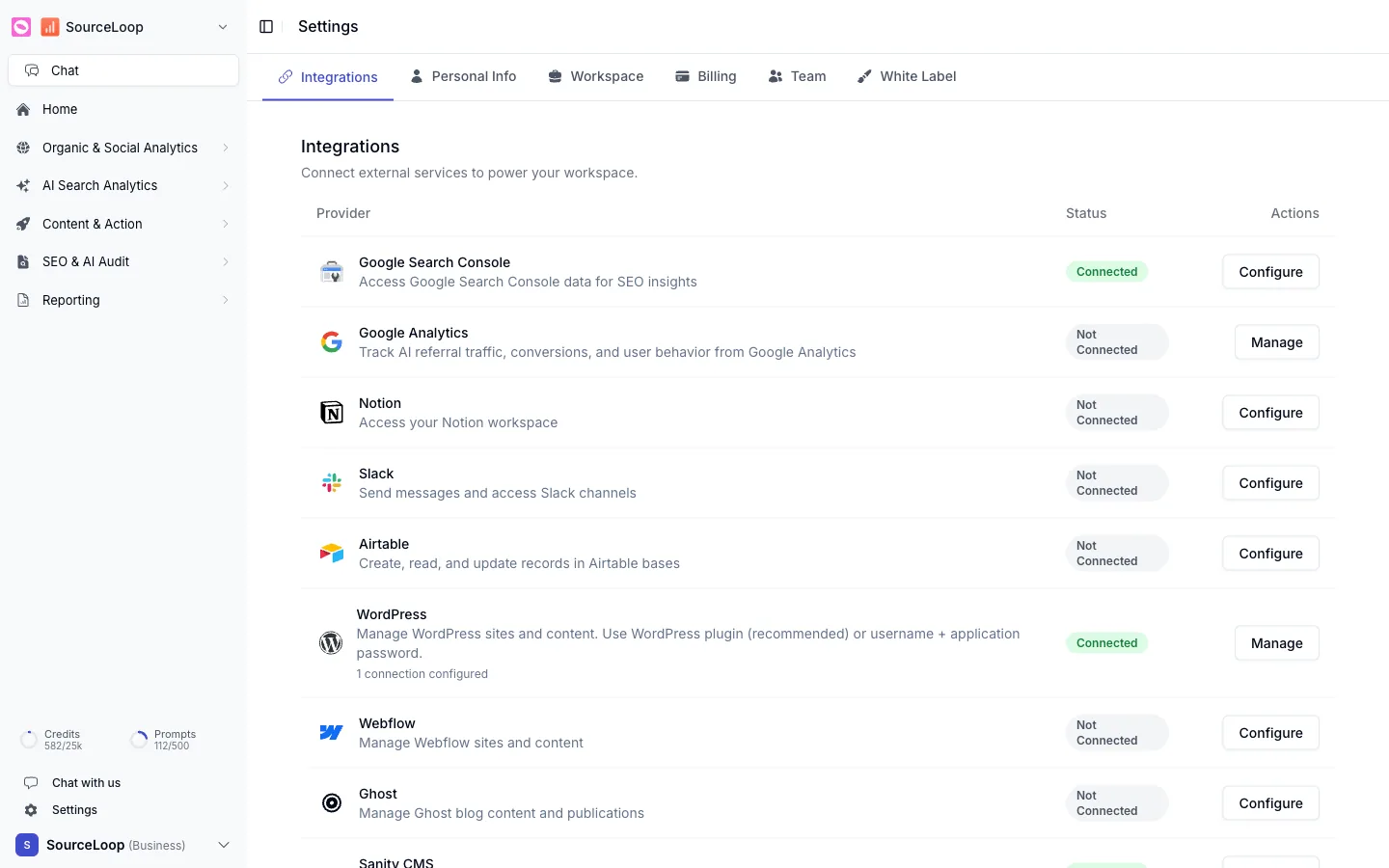
What you can connect
The integrations fall into a few groups:
- Search and analytics data. Google Search Console for keywords and rankings, and Google Analytics for traffic and conversions.
- CMS and publishing. WordPress, Webflow, Framer, Sanity, and Ghost, so agents can publish content and Orchly can read your AI traffic.
- Productivity and messaging. Slack for notifications, plus Notion and Airtable.
How connecting works
Each integration in the list shows a status, either Connected or Not Connected, and an action button:
- Configure to set one up for the first time.
- Manage to view, reconnect, or disconnect one that’s already linked.
Most connect through a quick sign-in. A few, like Search Console and Analytics, ask you to pick a site or property afterward.
Start with the data sources (Search Console, Analytics), since they power your dashboards and give agents something real to work with. Add publishing and messaging integrations when you’re ready to put agents to work.
Many agent abilities only appear once the matching integration is connected. If an agent can’t publish to WordPress or read your analytics, the integration behind it usually isn’t set up yet. See agent abilities and tools.