How to track keyword rankings in Google
Track your Google positions by country and device, watch daily changes, and spot the keywords moving up or slipping down.
The rank tracker shows where you sit in Google for the keywords you care about, by country and device, and how those positions move day to day. It’s how you catch a page slipping before the clicks dry up, and prove the keywords you’re working on are climbing.
You’ll find it under Organic & Social Analytics → Keyword Rank Tracker.
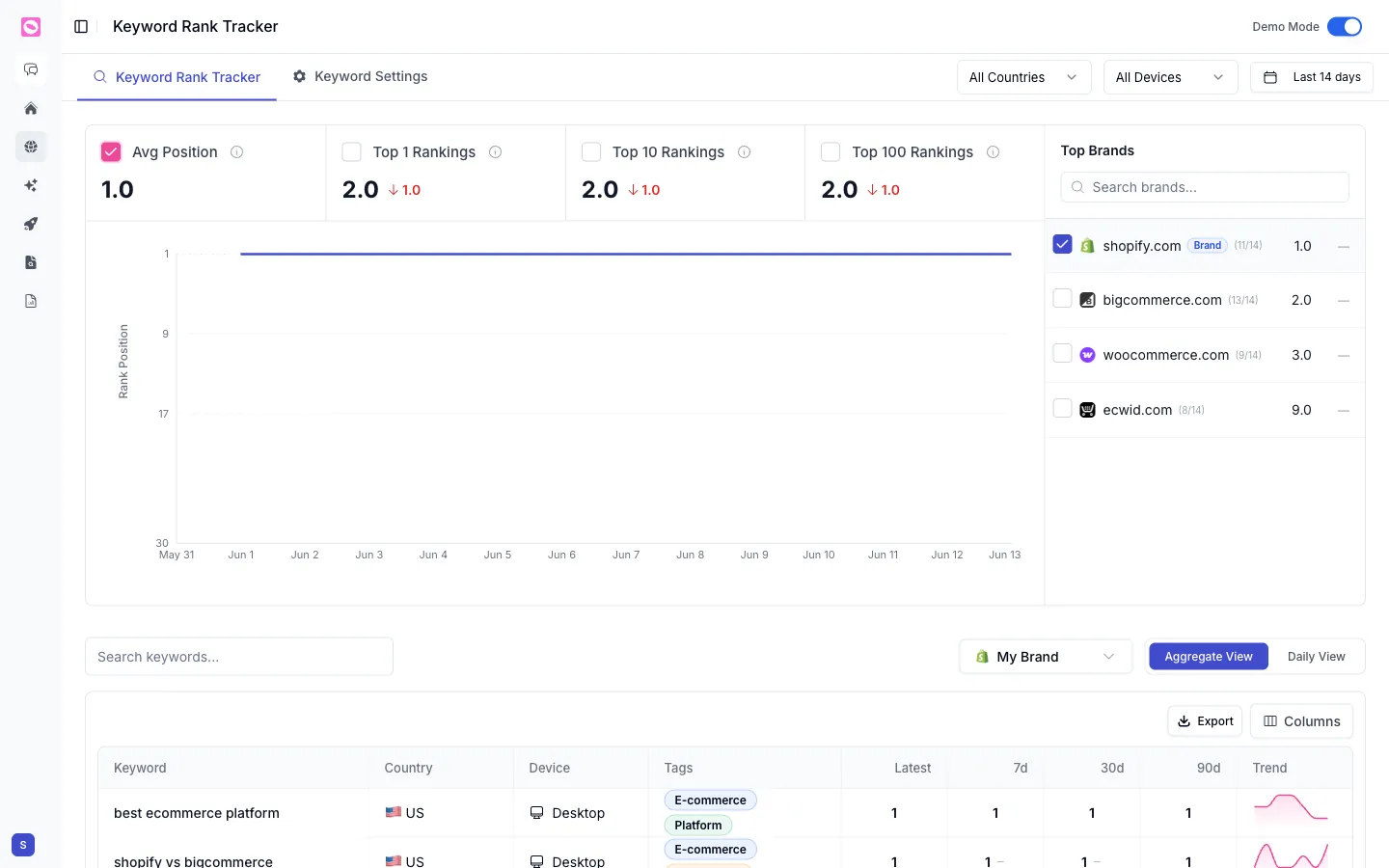
The summary metrics
The cards across the top give you the health of your whole keyword set, each with its change over the period:
- Avg Position, your average Google ranking across tracked keywords. Lower is better.
- Top 1 Rankings, how many keywords sit at position one.
- Top 10 Rankings, how many are on page one.
- Top 100 Rankings, how many rank at all.
The chart below plots your average rank position over time, so a sudden climb or drop is easy to spot.
Top brands
The Top Brands panel on the right ranks the domains that show up most for your keywords, with their average position and how many of your keywords they appear on. Your own site is tagged so you can see, at a glance, who you’re up against in the results.
The keyword table
Every tracked keyword sits in the table below with its Country, Device, and Tags, then its position now and over time:
| Column | What it shows |
|---|---|
| Latest | The most recent position |
| 7d / 30d / 90d | Position change over each window |
| Trend | A sparkline of the keyword’s movement |
Switch between Aggregate View and Daily View to see either a rolled-up summary or day-by-day positions, and use the brand selector to view your site or a competitor.
Keywords sitting in positions 11 to 20 are your fastest wins. They already rank, just not on page one. Sort by Latest, find the page-two keywords that matter, and a small content or internal-linking update often pushes them up.
Filters and export
Narrow the whole view by country, device, and date range at the top right, or search for a single keyword. Export pulls the table into a spreadsheet, and Columns lets you choose what to show.
To start tracking new terms, head to Keyword Settings. See add and manage tracked keywords.