How to set up white labeling in Orchly
Add your own logo, name, colors, and domain so reports and dashboards look like your agency, not ours.
If you run an agency, the reports you send clients should look like they came from you, not from a tool they’ve never heard of. White labeling puts your logo and name on every shared report.
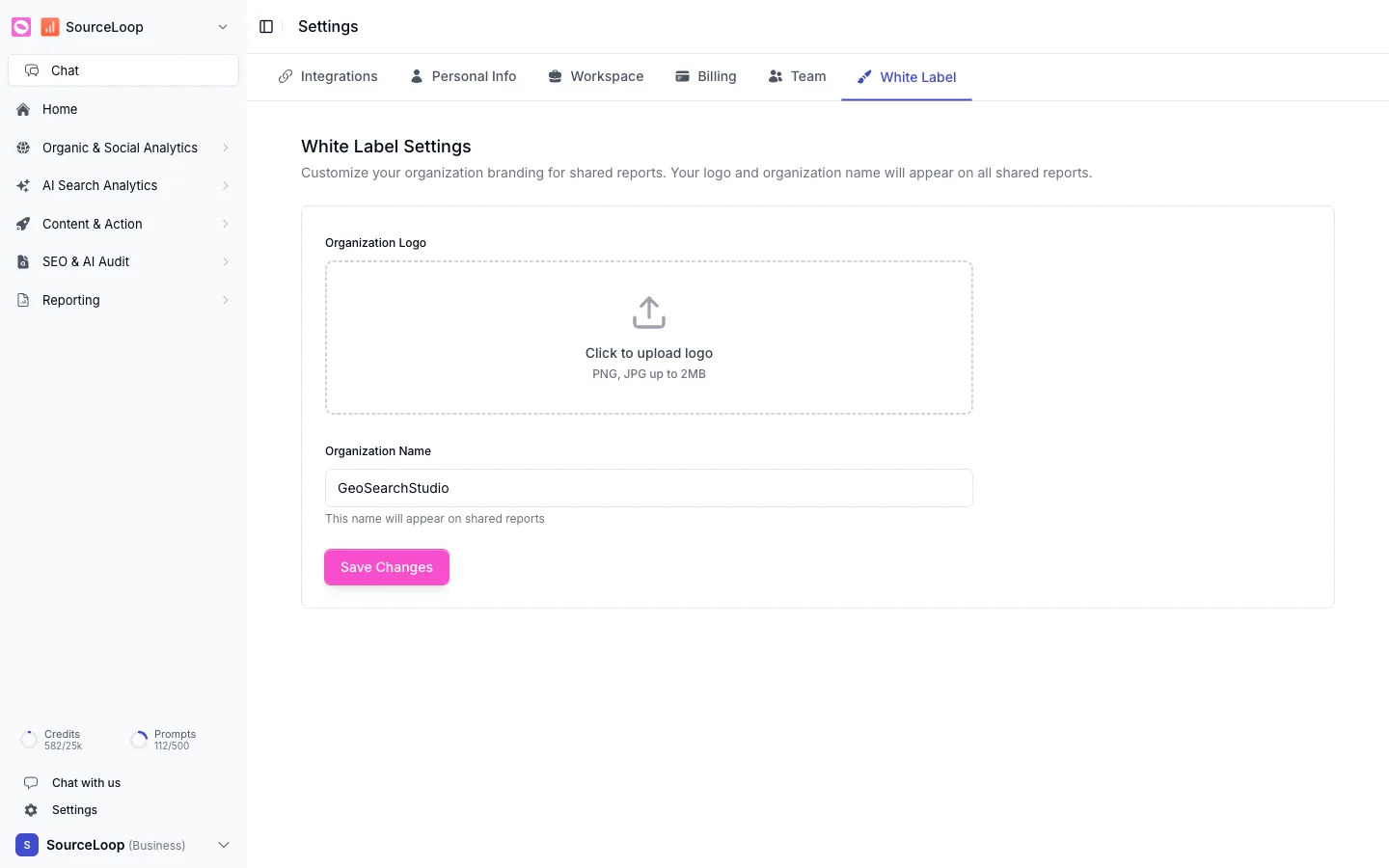
You’ll find it under Settings → White Label.
Set your branding
There are two fields:
- Organization Logo. Upload your logo (PNG or JPG, up to 2MB). It appears on shared reports.
- Organization Name. The name shown on shared reports. Set it to your agency’s name.
Click Save Changes, and from then on every report you share carries your branding instead of Orchly’s.
Where it shows up
White-label branding applies to your shareable reports, the links and PDFs you send clients. So the visibility and SEO progress you report looks like a product of your agency, which is exactly what a client should see.
Add your logo and name here before you send your first report. It’s a small touch that makes every report after it look polished, and you never have to think about it again.