How to manage your workspace settings
Set your workspace name, domain, timezone, and other basics that the rest of Orchly builds on.
Your workspace is the container for one brand or client: its data, integrations, agents, and team all live inside it. Workspace settings are the basic details that identify it. This is quick to set, and worth getting right since it shows up across the product.
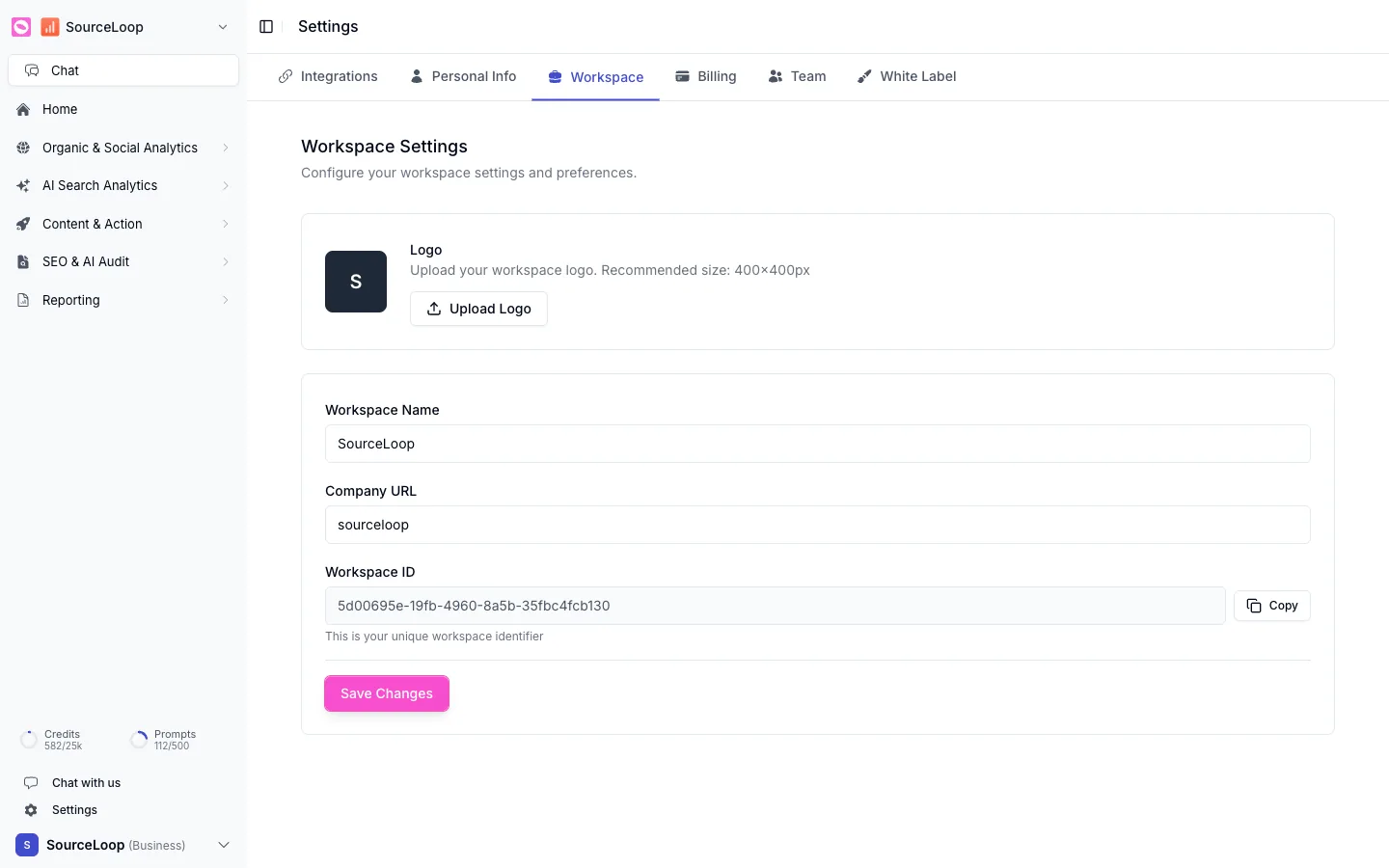
You’ll find it under Settings → Workspace.
What you can set
- Logo. Upload your workspace logo (a 400 by 400 pixel image works best). It appears around the app for this workspace.
- Workspace Name. What the workspace is called. For agencies, this is usually the client’s name.
- Company URL. The website this workspace is about.
- Workspace ID. Your unique identifier for this workspace, with a Copy button. You’ll need it for the API and other integrations.
Make your changes and click Save Changes.
Keep each brand or client in its own workspace so their data, agents, and integrations stay cleanly separated. The workspace name and logo make it obvious which one you’re in, which matters a lot once you manage several.
Workspace settings apply to everyone in the workspace. The settings that are just about you, your name and email, live on the Personal Info tab.