How to set up your brand profile in Orchly
Your brand profile tells every Orchly agent who you are, who your competitors are, and how to write. Set it up once and reuse it everywhere.
Your brand profile is the memory every Orchly agent shares. It holds who you are, the market and language you work in, your colors, your competitors, and the rules for how your content should read. Fill it in once and everything Orchly writes or analyzes uses it.
Open Brand from the left sidebar. The brand area has five sections, grouped down the left: Profile, Competitors, Writing Instructions, and under Knowledge Base, Uploads and Website Sitemap. This guide covers the Profile section. The others have their own guides.
Orchly populates much of your brand profile from your website during onboarding, including colors and context. You are mostly reviewing and correcting, not starting from scratch.
Brand name and URL
At the top of Profile is your brand identity card with your logo, brand name, and brand URL. Hover over the name or URL and a pencil icon appears so you can edit them inline. Keep these accurate, since agents and reports use them.
Primary market and language
Set Primary Market to the country you mainly sell in and Primary Language to the language your content is written in. Both are searchable dropdowns. These guide how agents write and how some visibility data is interpreted.
Brand context
Brand Context is a rich text field where you describe your brand: what it does, who it is for, and what makes it different. The placeholder says it well: describe your brand, what it does, and its key differentiators.
This is the single most useful field for content quality. The more specific you are here, the more your agents sound like you instead of like generic AI.
Brand context and writing fields save automatically a moment after you stop typing. There is no save button to hunt for.
Brand colors
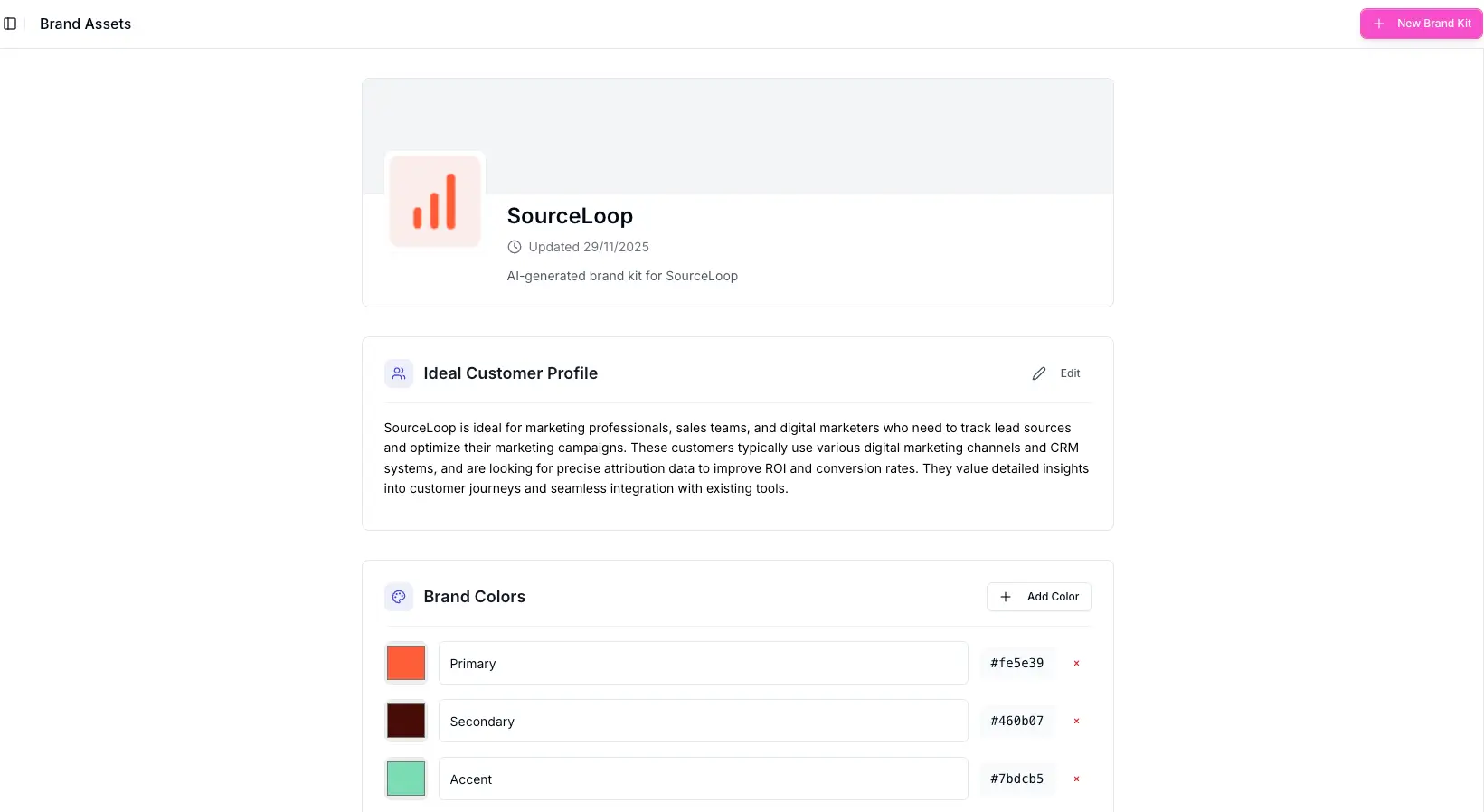
Brand Colors are used for AI-generated images and illustrations, so they look like they belong to you. Click Add Color, pick a hex value, and give it a name like Primary or Secondary. You can add up to five colors.
What to set up next
The Profile section is the foundation. Round out your brand kit with the rest:
- Add and manage competitors so Orchly can benchmark you against them.
- Set your writing instructions, including rules like “never use em dashes.”
- Upload documents and index your sitemap so agents can write from your own source material.