How to Check Which AI Prompts Mention Your Brand
The Prompts view shows every tracked prompt, how often it runs, and whether your brand shows up in the answer. Here is how to use it.
The Prompts tab is where AI visibility becomes a to-do list. It shows every question you track, grouped by topic, with the metrics that tell you whether you are showing up in the answer.
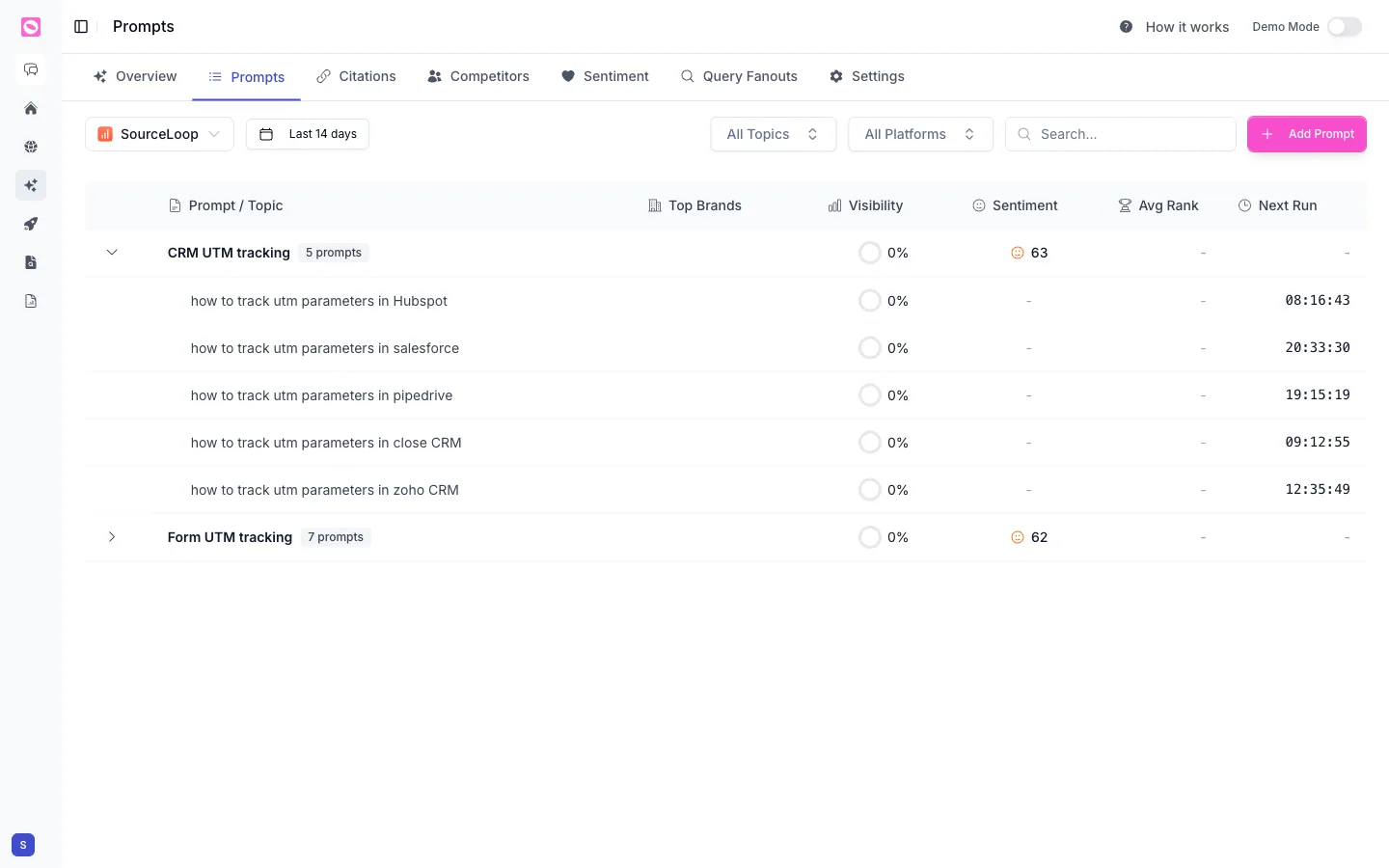
What each column means
| Column | What it tells you |
|---|---|
| Prompt / Topic | The tracked question, grouped under its topic |
| Top Brands | Which brands appear most often in the answer |
| Visibility | The share of runs where your brand showed up |
| Sentiment | How positively you were described, out of 100 |
| Avg Rank | Your average position when brands are listed |
| Next Run | When Orchly will run the prompt again |
Topics show a summary row, and you expand a topic to see the individual prompts beneath it.
Open a prompt for the full story
The row gives you the headline. Click any prompt to slide open its detail view, where you can see exactly how that one question plays out across the AI engines.
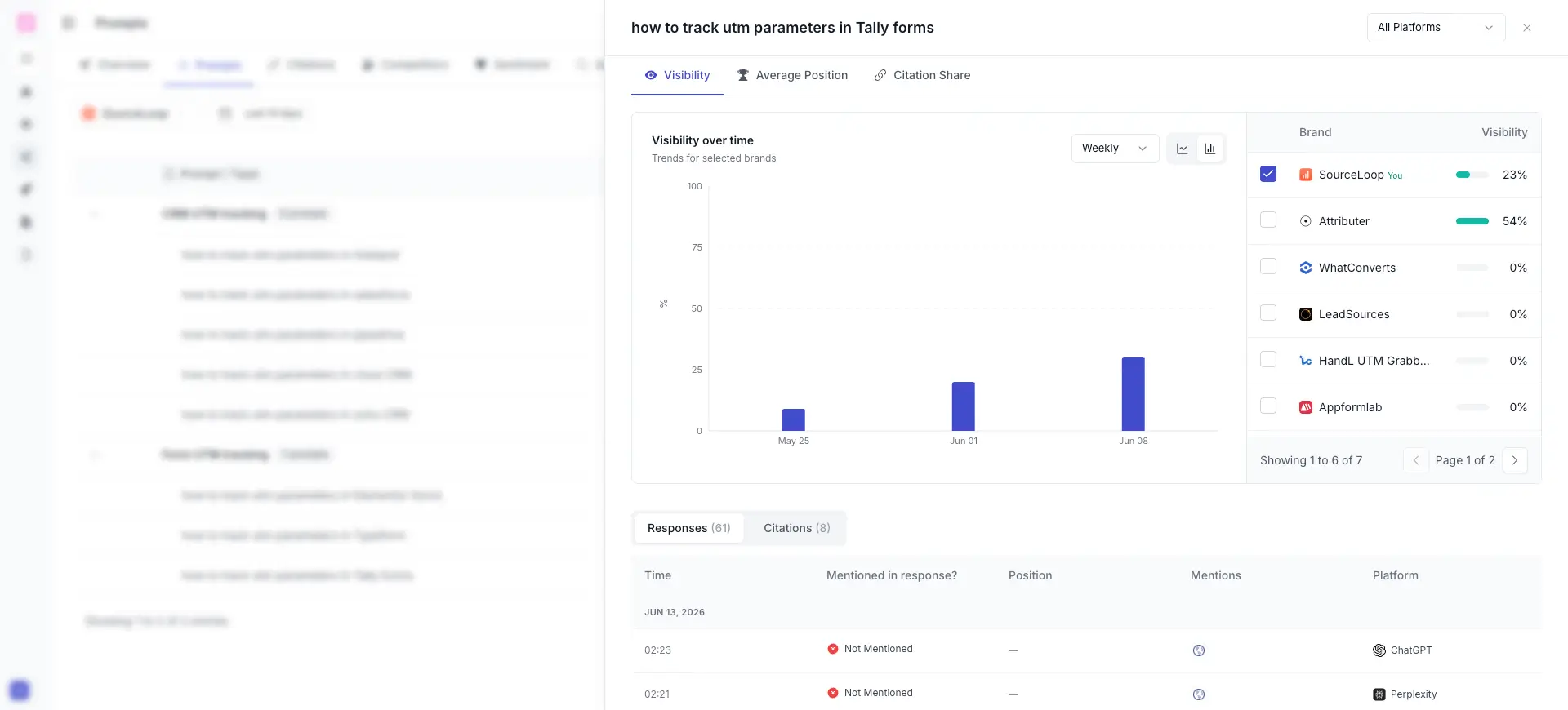
The drawer has three tabs at the top, each scoped to this prompt: Visibility, Average Position, and Citation Share.
The Visibility tab charts visibility over time and lists every brand that shows up for the prompt, with its visibility percentage. Your brand is marked You, so you can see at a glance who’s winning this exact question. In the example, SourceLoop sits at 23% while Attributer leads at 54%.
Below the chart, two more tabs break it down to the individual answer:
- Responses shows every time Orchly ran the prompt: the timestamp, whether your brand was Mentioned in response, your Position, the number of Mentions, and the Platform (ChatGPT, Perplexity, and so on).
- Citations lists the specific sources cited in those answers.
This is where you go from “we’re at 0% on this prompt” to seeing the actual ChatGPT and Perplexity answers that left you out, which tells you precisely what your content needs to beat.
How to use it
- Sort or scan for prompts with 0% visibility that clearly matter to your business. These are questions buyers ask where you are absent.
- Check the Top Brands column to see who is winning that prompt instead of you.
- Open Citations to find what pages those answers pull from.
- Write or improve a page that answers the prompt directly, then watch the visibility move on the next runs.
If a question your buyers ask is not listed, click Add Prompt to start tracking it. The prompts you track shape everything else in AI Search Analytics.
Filters
Use the brand selector, the date range, All Topics, All Platforms, and the search box to narrow the list. Filtering by a single platform is the quickest way to find, say, every prompt where you are invisible in ChatGPT specifically.
To see the hidden sub-queries a prompt expands into, check how to track query fan-out.