How to organize keywords into SEO topic clusters
Topic clusters group related keywords so you can track performance by theme instead of one keyword at a time. Here is how to build them in Orchly.
Tracking one keyword at a time gets noisy fast. Topic clusters fix that by grouping related keywords so you can follow a whole theme, like “sugar-free” or “wholesale,” as a single line on your dashboard. This guide shows you how to build them in Orchly.
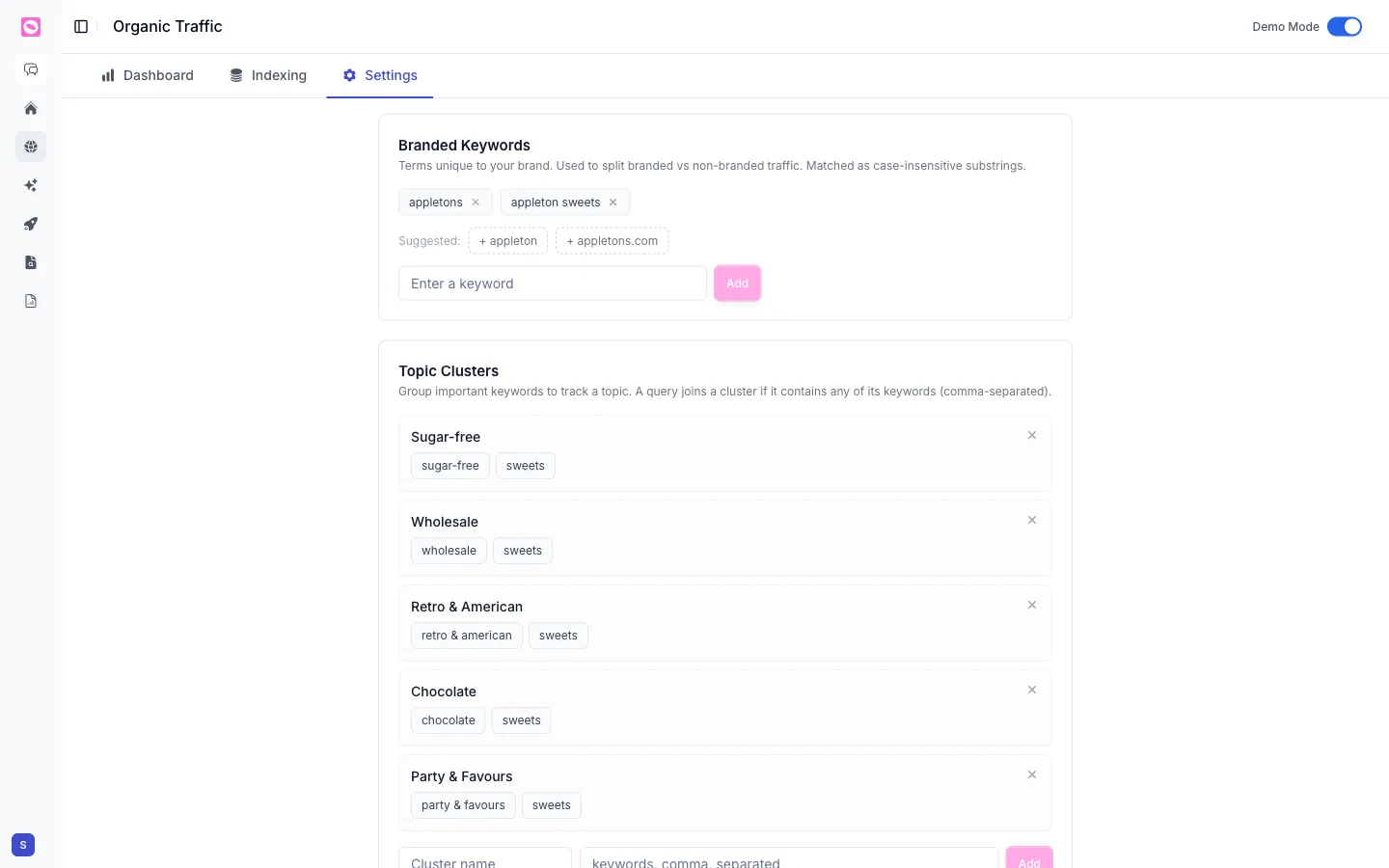
Open Organic Traffic, go to the Settings tab, and find the Topic Clusters section.
How a cluster works
Orchly’s rule is simple: a query joins a cluster if it contains any of the cluster’s keywords. So a “Sugar-free” cluster with the keywords sugar-free, sweets will pull in every search query that mentions either word. One query can belong to more than one cluster, which is fine and often useful.
Create a cluster
- Scroll to Topic Clusters on the Settings tab.
- In the row at the bottom, type a Cluster name (for example, “Chocolate”).
- Add the keywords, comma separated that define it (
chocolate, cocoa, truffle). - Click Add.
To edit a cluster later, add or remove keyword chips on its card, or remove the whole cluster with the x in its corner.
Build clusters around the buckets you actually report on: product lines, use cases, funnel stages. That way your dashboard mirrors how the business talks about itself, and the numbers are easy to explain to anyone.
See clusters in action
Once your clusters exist, head back to the Dashboard tab, open the Keywords table, and switch View by to Topic Clusters. Now your clicks, impressions, and position roll up by theme, so you can tell at a glance whether “sugar-free” is growing while “wholesale” stalls. See the organic search dashboard for the full view.