How to connect Google Search Console to Orchly
Link Google Search Console so Orchly can pull your clicks, impressions, and keyword rankings. Connect, pick a site, and start tracking organic search.
Google Search Console holds the truth about your organic search performance: the keywords you rank for, your clicks, your impressions, and your average position. Connecting it to Orchly pulls all of that in, so your organic data sits next to your AI visibility in one place.
This takes about two minutes. You sign in with Google, grant read access, and pick the site you want to track.
A Google account that already has access to your property in Search Console. If you can open your site in Search Console today, you can connect it to Orchly.
Step 1: Open the integration
Go to Settings, then the Integrations tab, and find Google Search Console. Click Connect.
You can also reach this from the onboarding checklist the first time you set up a workspace.
Step 2: Sign in with Google
A Google window opens. Choose the account that has access to your Search Console property, then approve the permissions Orchly requests.
The connection is read-only. Orchly pulls your performance reports. It never changes settings, submits pages, or touches anything in your Search Console account.
Step 3: Pick your primary site
After you sign in, Orchly lists every property your Google account can see. Choose the one you want to track as your primary site.
- If your site is verified at the domain level, pick the domain property. It captures the most data.
- If you only have a URL-prefix property, like
https://www.example.com/, pick that one.
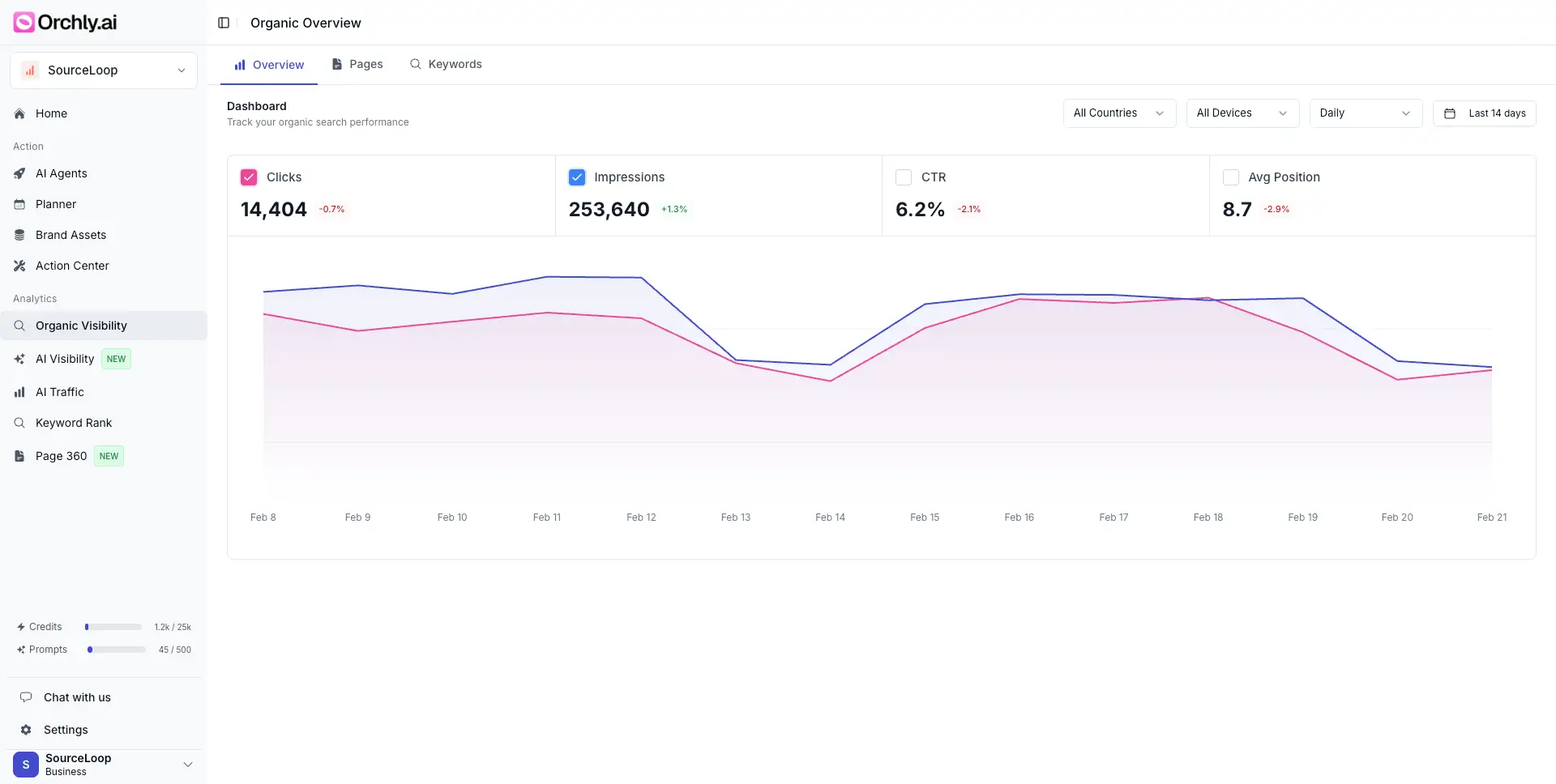
Step 4: Wait for the first sync
Orchly backfills your recent history on the first connection. Smaller sites finish in a few minutes. Larger sites with years of data can take longer. You do not need to keep the tab open.
When the sync finishes, your organic search dashboard shows clicks, impressions, and keywords, and your rankings start flowing into the rest of the product.
Troubleshooting
| Problem | What to check |
|---|---|
| Your site is not in the list | You are signed in with a Google account that lacks access. Sign out and reconnect with the right account, or ask an admin to grant you access in Search Console. |
| No data after the sync | Brand-new properties have little history for Google to share. Give it a few days of data collection. |
| Data looks lower than expected | A URL-prefix property only reports one protocol or subdomain. Switch to the domain property if you have one. |
Search Console tells you what people searched. Google Analytics 4 tells you what they did after they landed. Connecting both gives you the full picture. See how to connect Google Analytics 4.