How to track organic search traffic in Orchly
Combine Google Search Console and GA4 into one view of clicks, impressions, and keywords. Learn how to read and filter your organic dashboard.
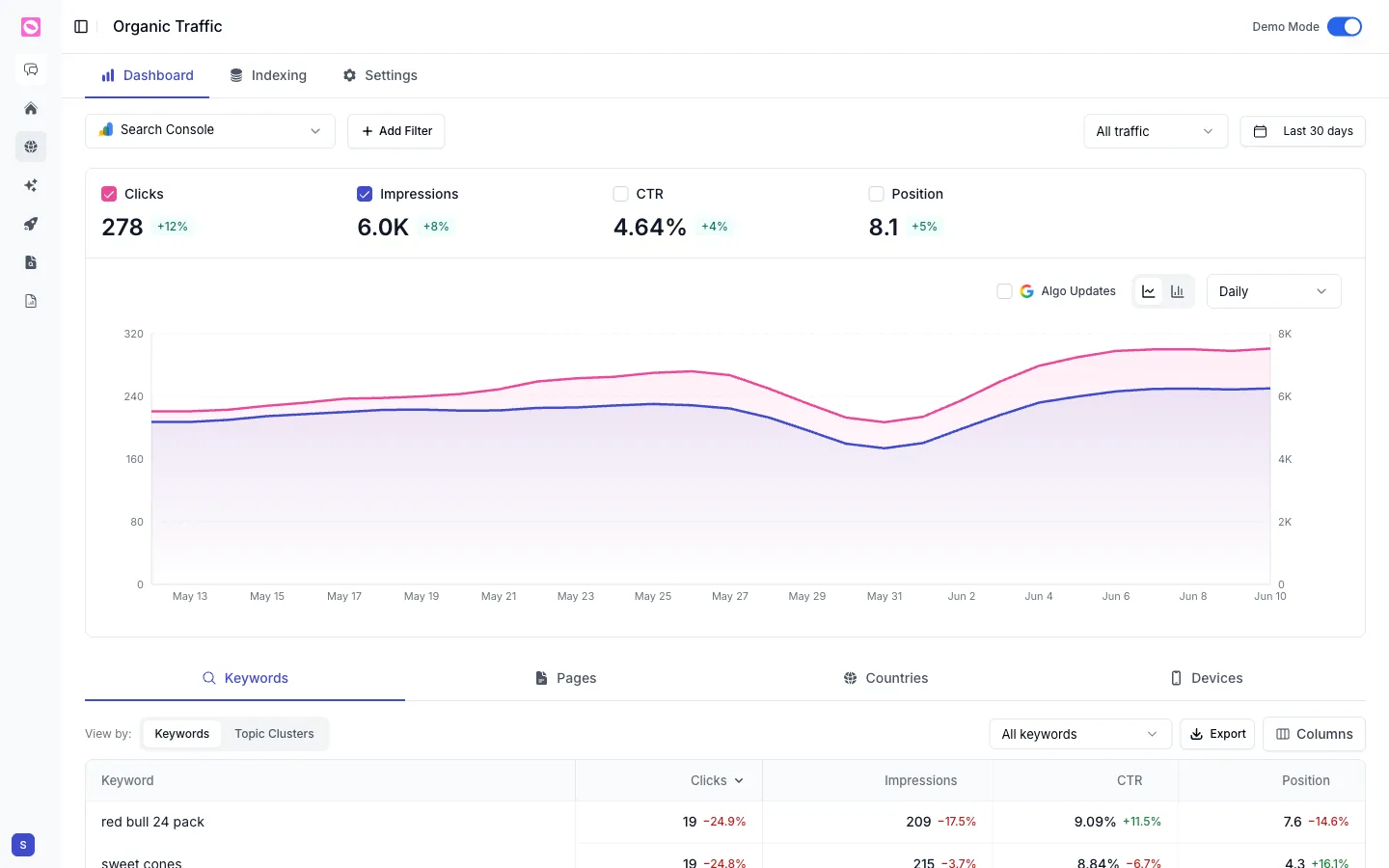
The organic search dashboard is where your Google Search Console and Google Analytics data finally sit in one place. Clicks, impressions, click-through rate, average position, and the keywords and pages behind them, all on one screen. This guide shows you how to read it and how to slice it.
You’ll find it under Organic & Social Analytics → Organic Traffic, on the Dashboard tab.
Pick your data source
The selector at the top left switches between Search Console, Google Analytics, and a combined view. Search Console answers “what did people search to find me,” GA4 answers “what did they do once they arrived.” Most of the time you’ll start with Search Console. If you haven’t connected them yet, see connect Google Search Console and connect Google Analytics 4.
The four metrics
The cards across the top are the ones every SEO watches, each with its change versus the previous period:
- Clicks, how many people came through from search.
- Impressions, how often you showed up in results.
- CTR, the share of impressions that turned into clicks.
- Position, your average ranking. Lower is better.
Tick a metric to add or remove it from the chart below. Switch the chart between daily, weekly, and monthly, or flip between a line and a bar view.
The Algo Updates toggle overlays known Google algorithm updates on your chart. If your traffic moved on a date that lines up with an update, that’s usually your answer, and it saves you a wild goose chase.
Break it down
Under the chart, four tabs slice your data by Keywords, Pages, Countries, and Devices. The Keywords table shows clicks, impressions, CTR, and position per query, and you can switch View by from individual keywords to Topic Clusters to see whole themes at once. See organize keywords into topic clusters, and group pages the same way with content groups.
The Indexing tab sits next to the dashboard, so you can confirm Google has actually indexed your pages. See how to check if a page is indexed by Google.
Use Add Filter to focus on a country, a device, or a set of pages, and Export to pull the table into a spreadsheet.
What to look for
A few patterns worth chasing every week:
- High impressions but low CTR on a keyword. The ranking is there; the title and description aren’t pulling clicks.
- A page sliding in position. Catch it before the clicks dry up.
- A keyword stuck on page two (positions 11 to 20). Often a small content update pushes it onto page one.