How to manage documents in Orchly
Upload, tag, search, and organize the documents your agents draw on for context and content.
Documents is your content workspace inside Orchly. It’s where drafts live, the ones you write yourself and the ones your agents produce, so finished work has a home instead of getting lost in chat or a stray export.
You’ll find it under Content & Action → Documents.
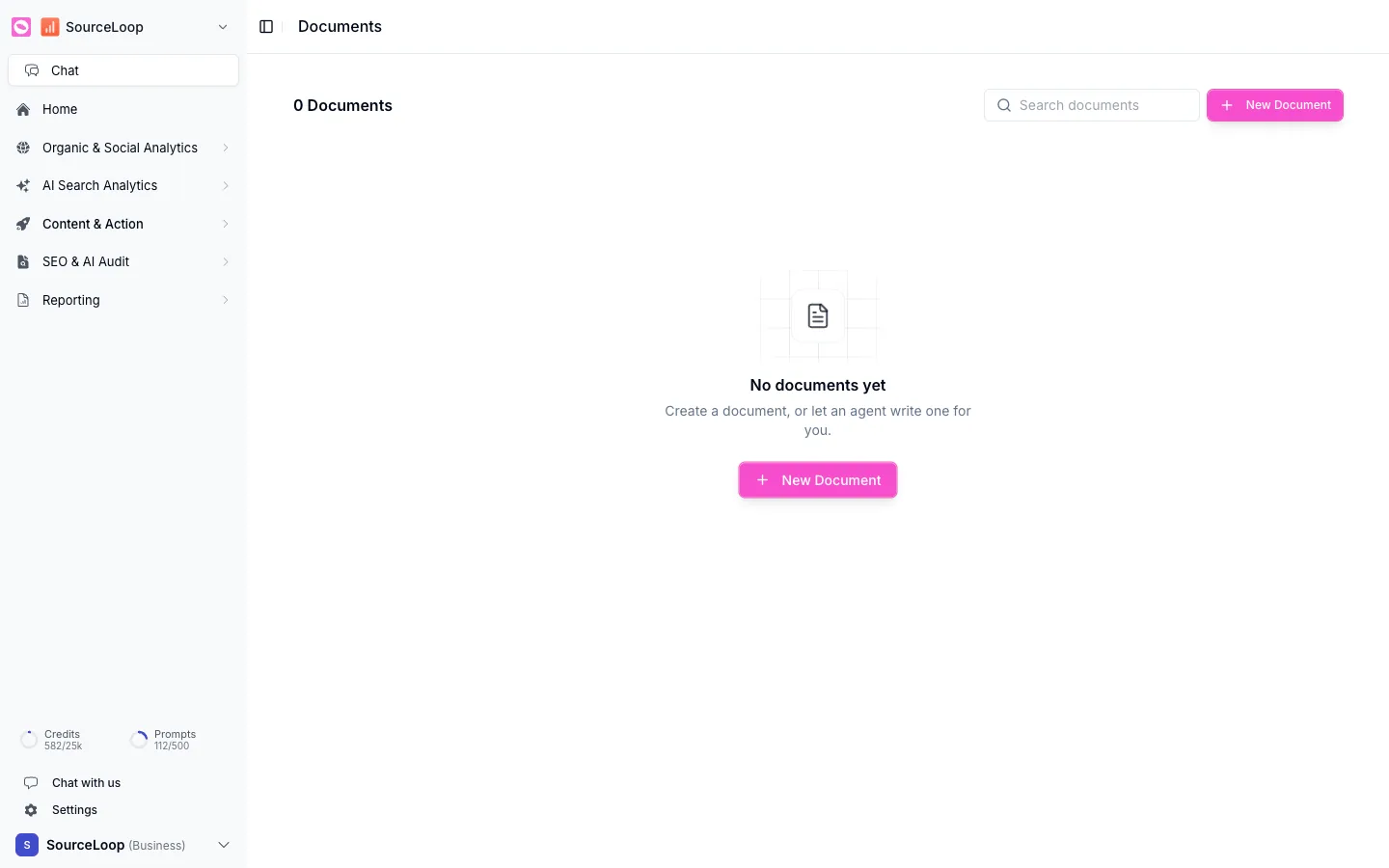
Create a document
Click New Document to start one by hand, the same way you’d open a blank doc anywhere else. Write directly, or paste in something you’re working on.
Let an agent write one
The more powerful path is to let an agent do it. When an agent has the ability to save a document, its finished work lands here as a draft for you to review and polish. A writing agent researches and drafts an article, saves it to Documents, and you pick it up from there. See publish agent output.
Inside the document editor
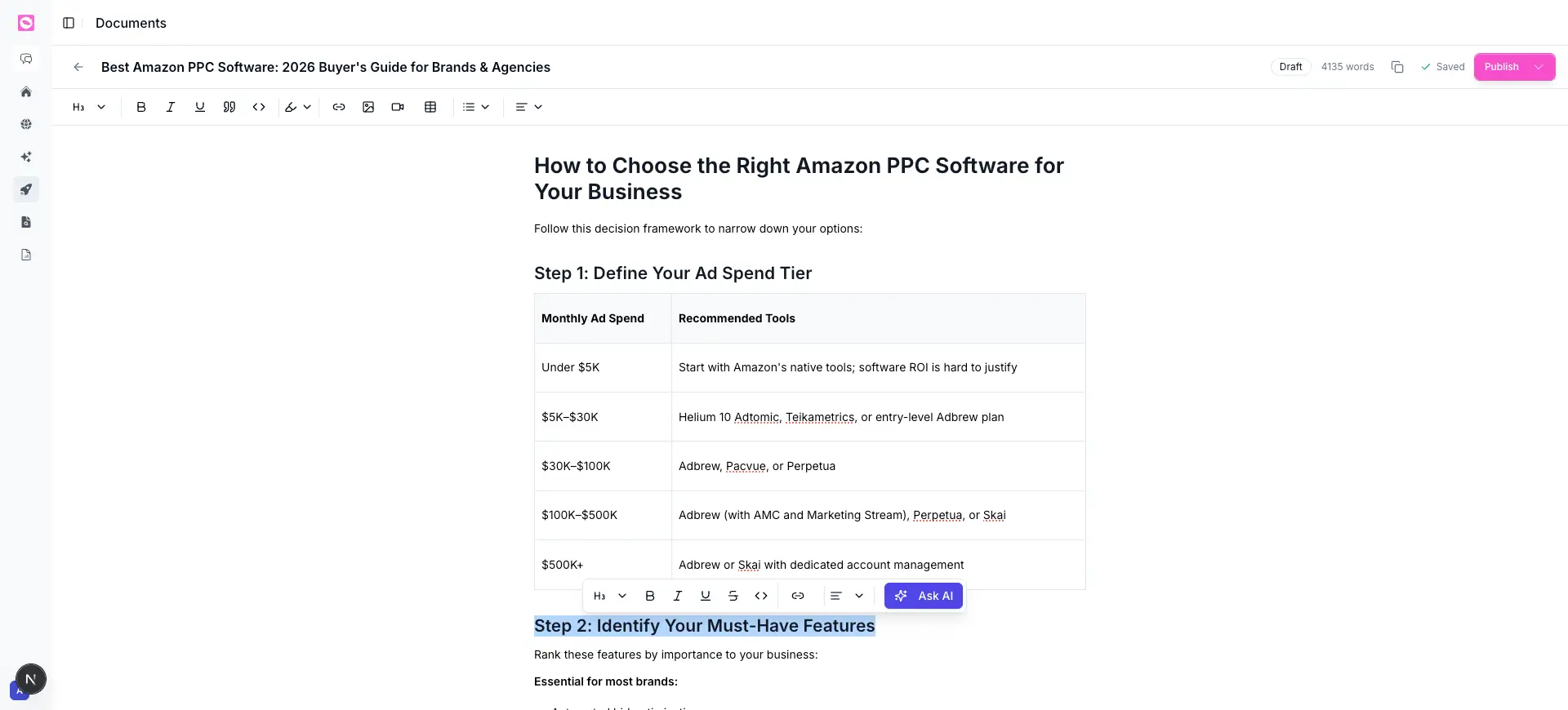
Opening a document drops you into a full editor built for content work, not a plain text box.
Format as you write
The toolbar gives you everything you need to structure a piece:
- Headings (H1 to H3) for a scannable structure.
- Bold, italic, underline, and strikethrough for emphasis.
- Quotes and code blocks, and a highlight color.
- Links, images, video, and tables.
- Lists (bulleted and numbered) and text alignment.
Why it matters: clear headings, lists, and tables are exactly what answer engines lift into AI answers. The formatting isn’t decoration, it’s what makes a page extractable and easy to read.
Quick AI tools
Select any text and a floating toolbar appears with an Ask AI button. Use it to rewrite, expand, shorten, or improve the selection right where it is.
It’s the fastest way to fix a clunky paragraph or tighten a section without breaking your flow or pasting in and out of a chat.
Auto-save and word count
The editor saves as you go, and the Saved indicator confirms it, so you never lose work. A live word count sits next to it, with a Draft badge showing the document’s status at a glance.
Copy and publish
Two ways to get the finished piece out of Orchly:
- Copy grabs the whole document so you can paste it wherever you need.
- Publish sends it live. The dropdown beside it lets you choose where, including pushing straight to your connected CMS.
When an agent saves a draft here, you usually only need to polish it: fix a fact, tighten the intro, add a link. Select the rough part and use Ask AI, then publish. That’s the whole loop, agent drafts, you refine, you ship.
Find and manage your docs
The Documents list shows everything with a search box up top, so you can pull up a draft by title as your library grows. Open any document to edit it, and remove the ones you no longer need to keep the workspace tidy.
Two different things, easy to mix up. Documents is for content you’re producing, your drafts and finished pieces. The knowledge base is for source material agents read from. Upload reference files there, not here. See knowledge base uploads.
Pointing your agents at Documents instead of straight to your CMS gives you a built-in review step. Drafts collect here, you edit and approve, then publish. It’s the safe default while you build trust in an agent.