How to check if a page is indexed by Google
Four ways to check if a page is indexed by Google, what crawled and discovered but not indexed mean, and how to watch indexing at scale in Orchly.
The fastest way to check if a page is indexed by Google is to search site: followed by the full URL, like site:yoursite.com/pricing. If the page shows up, it’s indexed. If nothing comes back, it isn’t, and it can’t earn a single click until that changes.
That quick check is fine for one page. This guide covers all the ways to check, what the trickier statuses mean, and how to watch indexing across your whole site in Orchly instead of one URL at a time.
Four ways to check a single page
- The
site:operator. Searchsite:yoursite.com/your-pagein Google. Results mean indexed; no results mean not indexed. - The URL Inspection tool. In Google Search Console, paste the URL into the inspection bar. “URL is on Google” means it’s indexed; “URL is not on Google” means it isn’t, with a reason.
- The Page indexing report. Also in Search Console, this report lists which pages are indexed and which aren’t, grouped by status.
- A dedicated tool like Orchly. Instead of checking URLs one by one, Orchly pulls your whole index status from Search Console into one view.
What the statuses mean
Google doesn’t just say indexed or not. The statuses you’ll see, and the ones Orchly surfaces, are:
| Status | What it means |
|---|---|
| Submitted and indexed | The page is in Google’s index and can rank. This is the goal. |
| Crawled – not indexed | Google visited the page but chose not to index it, often a quality or duplicate-content signal. |
| Discovered – not indexed | Google knows the page exists but hasn’t crawled it yet, often a crawl-budget or priority issue. |
| Unknown to Google | Google hasn’t found the page at all. Usually a sitemap or internal-linking gap. |
“Crawled – currently not indexed” usually means Google saw the page and wasn’t impressed. Thin content, near-duplicates, and pages with no internal links are common causes. Improving the page and linking to it from stronger pages is the fix.
Watch indexing at scale in Orchly
Checking URLs one by one doesn’t scale past a handful of pages. Open Organic Traffic and go to the Indexing tab to see your whole site at once.
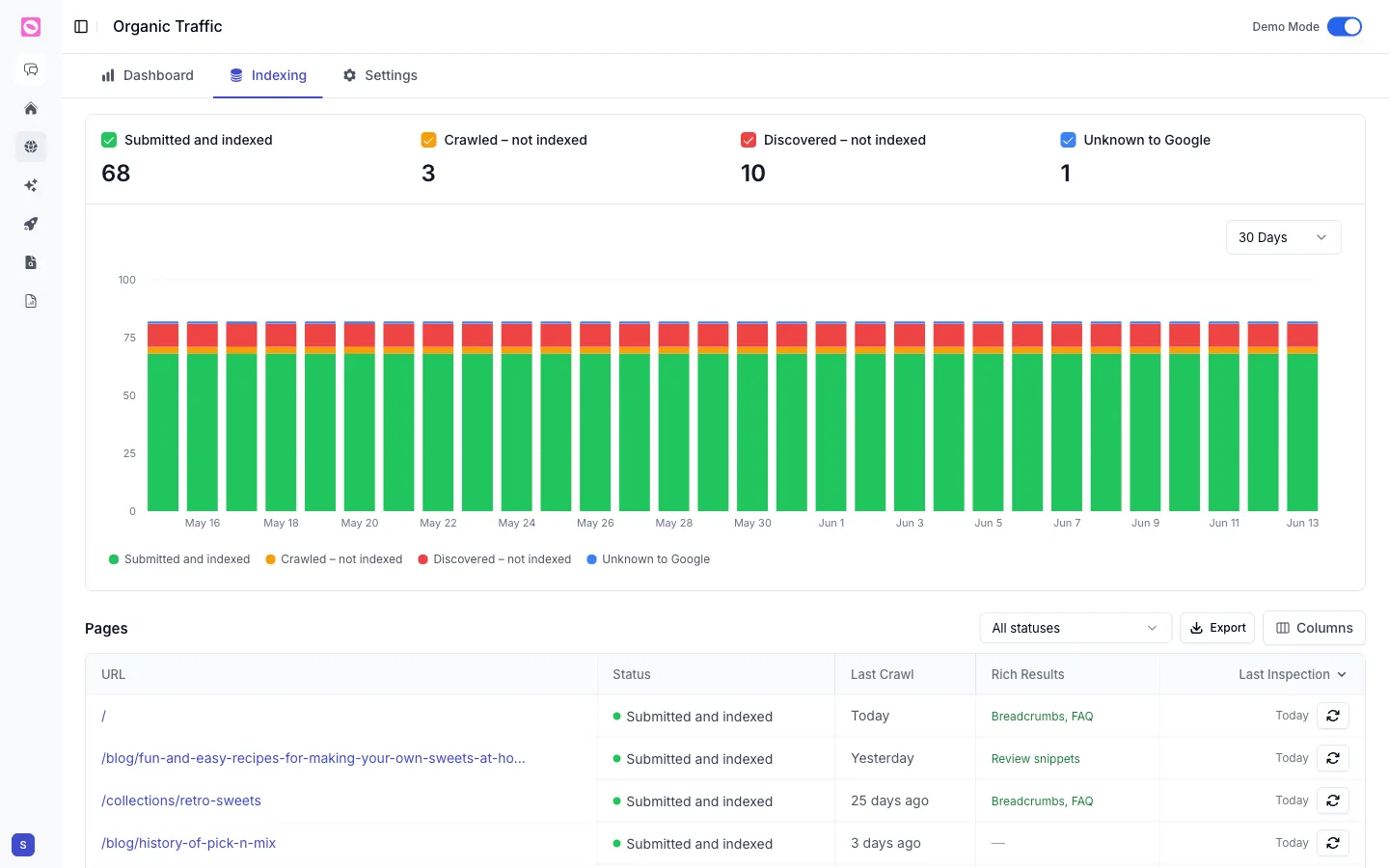
The cards at the top count how many pages sit in each status, and the chart tracks those counts over time so you can spot a sudden drop. Below, the Pages table lists every URL with its status, last crawl date, any rich results it qualifies for, and a button to re-inspect it on demand. Filter by status to pull up, say, every “Discovered – not indexed” page in one click.
Fix what isn’t indexed
A quick triage once you know the status:
- Discovered or Unknown. Make sure the page is in your sitemap and linked from other pages, then request indexing.
- Crawled – not indexed. Strengthen the content and add internal links from pages that already rank.
- Not indexed on purpose? Confirm a stray
noindextag or robots.txt rule isn’t blocking a page you actually want indexed.