How to add and manage tracked keywords
Add keywords, choose the countries and devices to track, and organize them with tags so your rank tracker stays useful as it grows.
Before the rank tracker can show you anything, it needs to know which keywords to watch. You add them once, set the country and device for each, and tag them so the list stays manageable as it grows.
Open Keyword Rank Tracker and switch to the Keyword Settings tab.
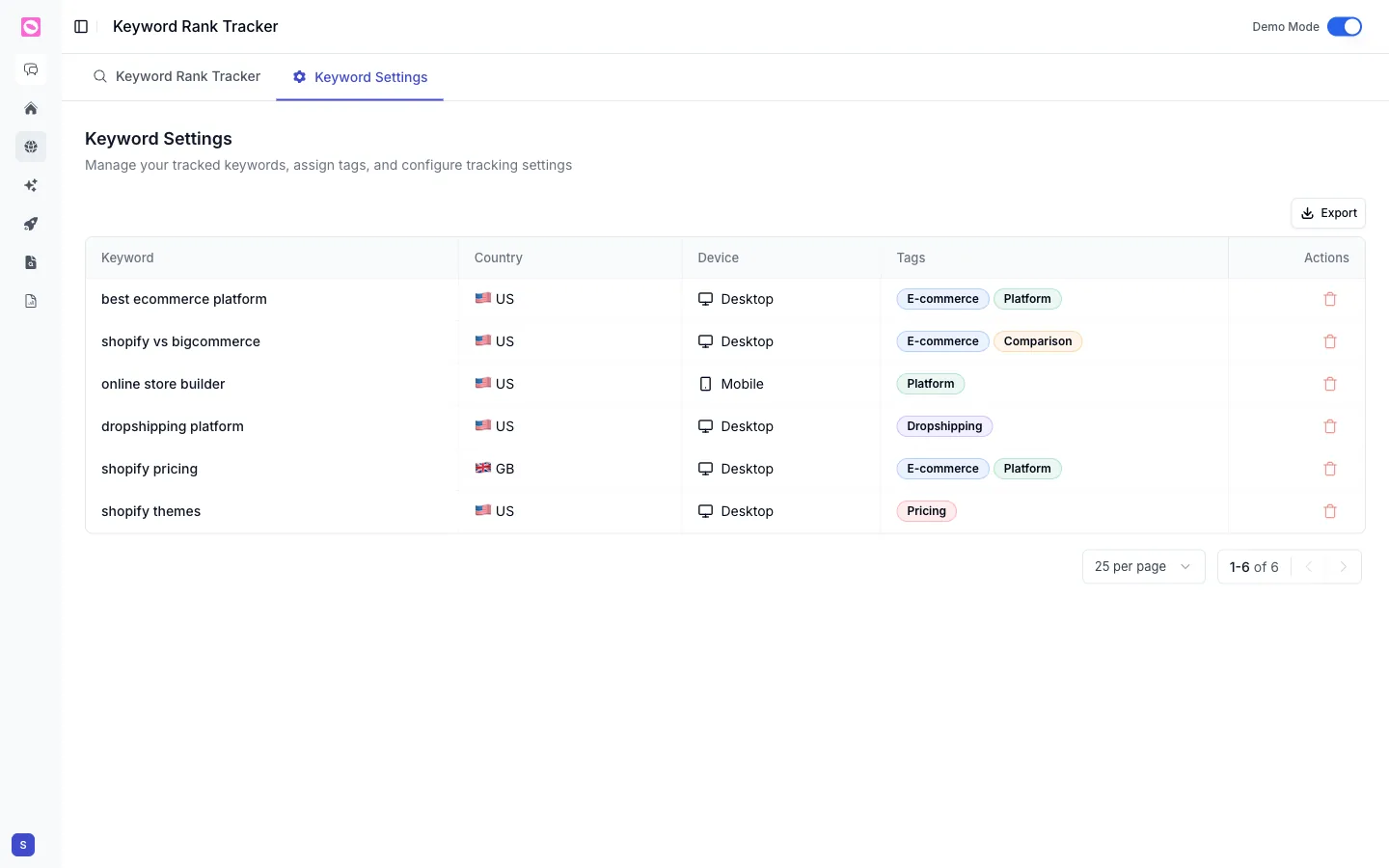
Add keywords
Click Add Keywords and enter the terms you want to track, one per line, so you can paste a whole batch at once. Set the country and device they should be tracked in (the same keyword on desktop and mobile, or in the US and the UK, counts as separate entries because the results differ).
Add the searches real buyers type, not your internal product names. “online store builder” and “shopify pricing” are how people search; your feature names usually aren’t. Match the language in your topic clusters so your data lines up across the product.
Tag your keywords
Each keyword can carry tags like E-commerce, Comparison, or Pricing. Tags are how you slice the rank tracker later, so a quick tagging habit pays off:
- Group by funnel stage (top-of-funnel, comparison, bottom-of-funnel).
- Group by product line or category.
- Group by intent (informational, commercial, branded).
Assign tags right in the table, and they flow straight through to the filters on the main rank tracker.
Manage and clean up
The Keyword Settings table lists everything you track with its country, device, and tags. Remove a keyword you no longer need with the delete action on its row, page through the list with the pager at the bottom, and use Export to pull the full set into a spreadsheet.
Your plan includes a set number of tracked keywords, shown as your keyword usage. If you hit the cap, remove keywords you no longer watch or upgrade your plan. See billing and plans.
Once your keywords are in, head back to the tracker to watch them move. See how to track keyword rankings in Google.