How to read AI traffic analytics and logs
Understand the analytics charts and dig into per-request audit logs to see exactly which AI bots hit which pages.
AI Traffic Analytics has two tabs. Analytics gives you the charts and totals; the Traffic log gives you the raw, request-by-request detail. This guide covers how to read both, and what the bot types actually mean.
The Analytics tab
The Analytics tab answers the big questions: how much AI traffic you’re getting, from which platforms, and to which pages. Bot and human visits are split per platform up top, with a trend chart below and breakdowns by Platforms, Pages, and Countries. For the full tour of that view, see how to track AI crawler and referral traffic.
The Traffic log
When you want to see exactly who hit what, switch to the Traffic log. Every request is one row.
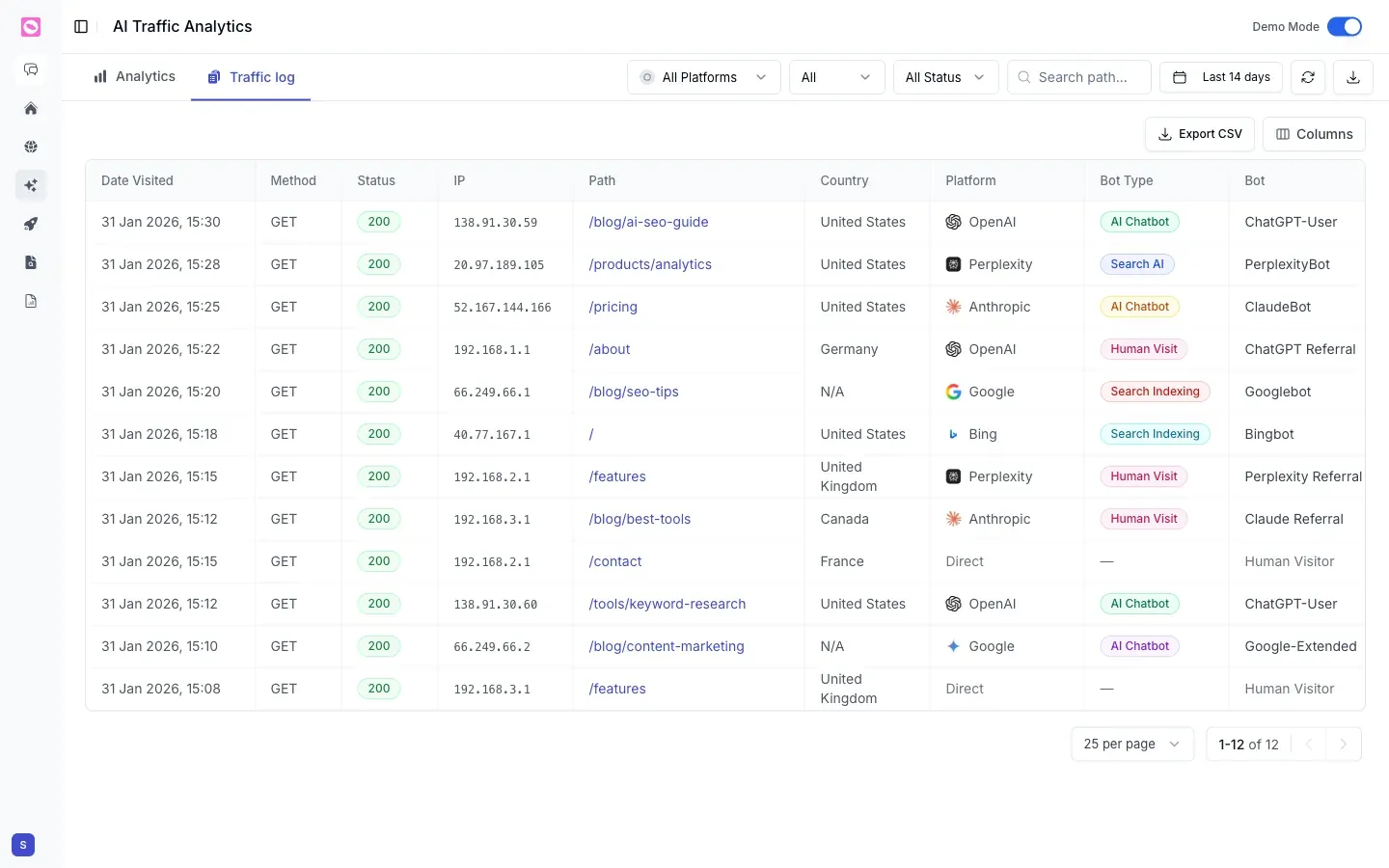
Each row shows:
| Column | What it shows |
|---|---|
| Date Visited | When the request happened |
| Method / Status | The HTTP method (GET) and response code (200) |
| IP | The requesting IP address |
| Path | The page that was requested |
| Country | Where the request came from |
| Platform | The company behind it (OpenAI, Anthropic, Perplexity, Google, Bing) |
| Bot Type | The kind of visit (see below) |
| Bot | The specific bot or referral, like ChatGPT-User or Googlebot |
What the bot types mean
The Bot Type column tells you why something hit your page:
- AI Chatbot, an AI assistant fetching your page to answer a user right now (ChatGPT-User, ClaudeBot, Google-Extended).
- Search AI, an AI search engine’s crawler (PerplexityBot).
- Search Indexing, a traditional search crawler (Googlebot, Bingbot).
- Human Visit, a real person arriving from an AI product as a referral.
Filter by platform or status, or search a path, to answer specific questions, like “which pages is GPTBot crawling most?” That list is a strong signal of what AI engines find worth reading on your site.
Export it
Both tabs export. Use Export CSV on the Traffic log to pull raw requests into a spreadsheet for deeper analysis or to share with a developer, and Columns to choose what to include.