How to set up an inbox for link building outreach
Connect Google Workspace, Zoho, Fastmail or any SMTP inbox so the Activation Agent can send outreach from your own address.
To set up an inbox for link building outreach, open Activation Agent → Backlinks, click Settings, and scroll to Reach. Pick your email provider, fill in your name and address, and connect. From then on the Activation Agent sends backlink outreach from your own address, and reads replies from the same mailbox.
You can connect Google Workspace, Zoho Mail, Fastmail, or Other or custom for any provider with SMTP and IMAP.
Why send link building outreach from your own inbox?
Pitches from a real person at a real domain get opened. Mail from a shared sending service with no history doesn’t. Sending from your mailbox also means replies land where you already work, and Orchly can see them and move the prospect to Replied on its own.
Use a named person on your company domain, like maya@yourcompany.com. Editors reply to people.
Fields every provider needs
- Provider: where your mailbox is hosted.
- From name: your name or company, as recipients will see it.
- Business email: the address you send from.
How to connect Google Workspace
Google requires OAuth for third-party Gmail access, so you connect through your own Google OAuth app instead of a password. Because the app lives in your Google Cloud project with the user type set to Internal, Google needs no verification or security review, and your admin stays in control.
- In Google Cloud, enable the Gmail API and create an OAuth client of type Web application.
- Set the consent screen user type to Internal.
- Add the redirect URI shown in Orchly to the OAuth client.
- Paste the Client ID and Client secret into Orchly.
- Click Continue with Google and approve access.
Make sure IMAP is switched on in your Gmail settings. Without it, Orchly can send but can’t read replies.
How to connect Zoho Mail
Zoho keeps accounts in separate data centres, and only the right one accepts your login.
- Choose Zoho Mail as the provider.
- Pick your Region: United States (.com), Europe (.eu), India (.in), Australia (.com.au), Japan (.jp) or Canada (.ca). Check the address bar when you’re signed in to Zoho to see which one is yours.
- Create an app-specific password in your Zoho security settings and paste it into App password. Your normal account password won’t work.
- Click Connect inbox.
A wrong region fails like a wrong password, so check the region first if the connection is refused.
How to connect Fastmail
Create an app password in Fastmail with mail sending and IMAP access, then paste it into App password and click Connect inbox. Orchly already knows Fastmail’s server settings.
How to connect any other provider
Choose Other or custom, then enter your SMTP host, SMTP port, IMAP host and IMAP port. The defaults are 465 for SMTP and 993 for IMAP. Use an app-specific password if your provider offers one.
When you connect, Orchly checks both sending and reading before saving the inbox.
Who it comes from: your signature and postal address
Once connected, fill in Who it comes from. These are added to every email, identical each time:
- Your title, for example Founder.
- Sign-off: your signature block.
- Postal address: required. Commercial email must include a physical address, so nothing can be queued until it’s set.
- Follow-ups: how many nudges to send when there’s no reply, from 0 to 3. One is the sensible default. Three or more mostly earns spam complaints.
Deliverability: check SPF, DKIM and DMARC
The Deliverability block checks your domain’s SPF, DMARC, MX and DKIM records. Google, Yahoo and Microsoft now reject unauthenticated mail outright instead of filing it as spam, so fix anything marked here before you send. After you update DNS, click Re-check.
Warming up: how the sending pace works
A new address that suddenly sends lots of email looks like spam. So Orchly ramps up slowly:
- It starts at 5 emails a day and adds 5 every second day until it reaches your Daily target (up to 200).
- While it climbs, the inbox shows a Warming up badge and a chart of the next two weeks.
- Emails go out during working hours, at that day’s pace.
If the address already has a real sending history, turn on Already warmed up to skip the ramp. Don’t do this for a new address, since full volume from day one lands in spam.
Orchly doesn’t use a warm-up network that trades fake emails between accounts. Mail providers now detect that pattern and count it against you.
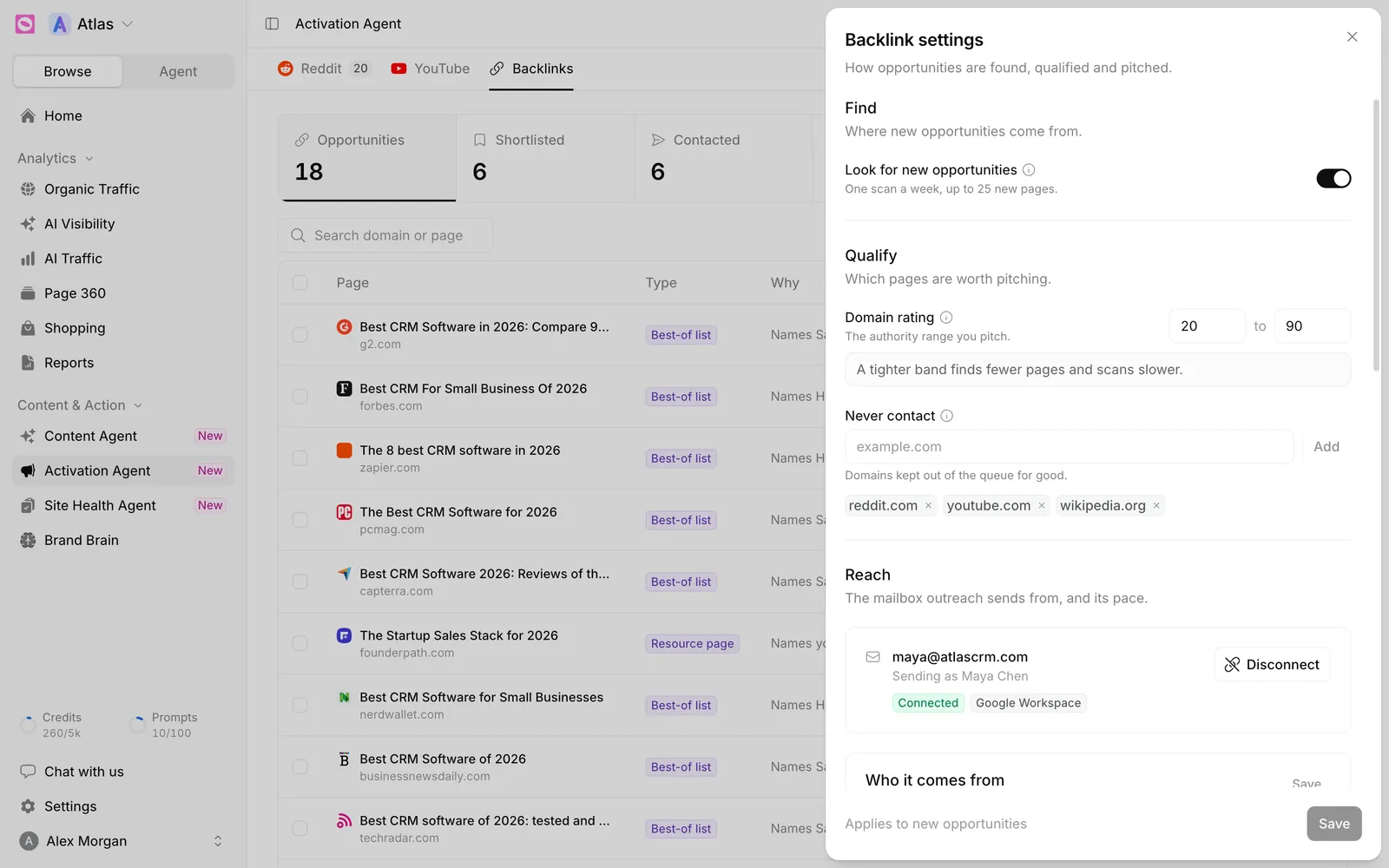
Inbox status
The connected inbox shows one of three states:
- Connected: sending and reading work.
- Paused: sending is stopped.
- Needs attention: something broke, usually an expired password or revoked access. The error shows under the badge.
To switch mailboxes, click Disconnect and connect the new one. The stored password is deleted when you disconnect.