How to import a product feed for AI shopping
Shopping tracking starts with your catalog. Fetch it from a Shopify store or upload a CSV or Merchant Center feed, and update it any time.
To import a product feed for AI shopping tracking, open Analytics → Shopping. The first time, you’ll see an Add your products card with two options: fetch a Shopify store, or upload a CSV or Google Merchant Center feed. Either way, Orchly reads your products and matches them to the products ChatGPT and other AI assistants already name in shopping answers.
Your catalog is what lets shopping visibility tell your products apart from everyone else’s. It also powers the Catalog price column, so Orchly can flag when AI quotes the wrong price.
Option 1: fetch a Shopify store
If you sell on Shopify, this is the fastest route.
- Under Shopify store, type your store address, like
yourstore.com. - Click Fetch.
Orchly reads your public storefront catalog. There’s no app to install and nothing to authorize.
Each product’s vendor becomes its brand, and its product type becomes its category. If a product has no type, Orchly uses store tags that look like categories. Every variant’s price is read, so a product with several sizes gets a price range.
If Orchly can’t read a Shopify catalog at that address, you’ll see an error asking you to check the address or upload a CSV instead.
Option 2: upload a CSV or Merchant Center feed
Under Upload a file, drop a file onto Drop a CSV or Merchant Center feed or click to browse. CSV, TSV, TXT and JSON files are accepted.
Orchly CSV format
Each product needs a title and a brand. Everything else is optional. Click Download an example in the upload box for a ready-made template.
| Column | Required | Example |
|---|---|---|
title | Yes | QuietComfort Ultra Headphones |
brand | Yes | Bose |
description | No | World-class noise cancellation, spatial audio |
price | No | 429.00 |
currency | No | USD |
link | No | Product page URL |
imageLink | No | Product image URL |
category | No | Headphones > Noise cancelling |
Use > in the category to build a tree. “Headphones > Noise cancelling” shows up as a parent and child in the Categories rail on the Products tab.
If the file has no title or brand column, the import stops with “The file needs a “title” and a “brand” column.” If only some rows are missing them, those rows are skipped and you’ll see how many.
Google Merchant Center feeds
You can upload a Merchant Center product feed as it is, in CSV, TSV or JSON. Orchly handles the differences for you:
- Variants that share an
item_group_idbecome one product, with a price range across them. - Prices like “59.00 USD” are split into amount and currency.
- Categories come from
product_type, or fromgoogle_product_categoryif there’s no product type.
If a product in the feed has no brand, it’s matched against any brand in AI answers, and you’ll get a warning with the count.
What happens during an import?
Once the import starts, the card shows two steps with live progress.
- Reading your store or file, with the number of products and categories found.
- Matching to AI answers, which ends with how many of your products are “already named by AI”.
When both are done, click View products to see your catalog. Matching runs across all your past shopping answers, not only new ones, so you get history from day one.
How do I update my catalog?
Go to the Products tab and click Update catalog in the toolbar. The Update your catalog dialog has the same two options.
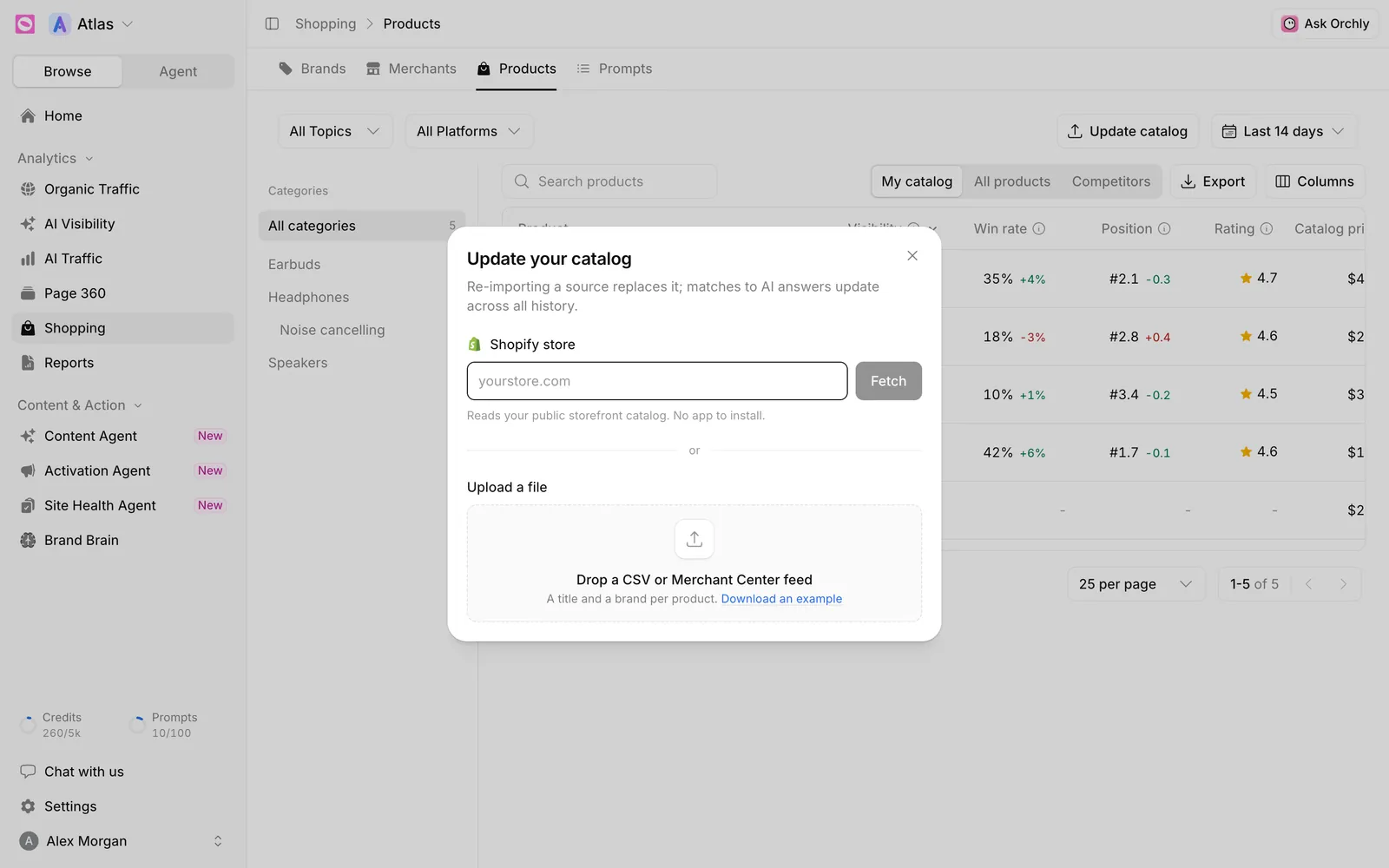
Re-importing a source replaces it. Products that are no longer in your store or file are removed from your catalog, and matches to AI answers update across all history.
Each source is kept separately. Re-fetching your Shopify store replaces only the Shopify products, and a new CSV replaces only the previous CSV import. So you can combine a Shopify store with a CSV of products sold elsewhere.
Launched a product line or changed prices? Update your catalog so the Catalog price column stays accurate. Otherwise Orchly may flag price mismatches that are really just your catalog being out of date.
After the import
Head to Products and switch to My catalog to see only your products. Any product at 0% visibility is one AI never named in the period, so it’s a good place to start. From there, see how to track product visibility in AI shopping for what each column and the product drawer tell you.
Shopping data depends on your tracked prompts, so make sure you’re tracking the buying questions your customers ask.