How to see SEO and AI traffic for every page
Page 360 puts Search Console, GA4, AI citations, AI crawls and Site Health on one row per page, with quick filters for pages losing ground.
Page 360 shows SEO and AI traffic for every page on your site in one table: Google Search Console clicks and impressions, GA4 sessions and conversions, AI citations from ChatGPT, Perplexity and Google AI Overviews, AI crawler visits, and Site Health scores. One row per page, so you can see which pages win in Google, which win in AI answers, and which are slipping in both.
Open it from the sidebar under Analytics → Page 360. There’s nothing to set up. It covers every page Orchly has data for, and you don’t pick pages to track.
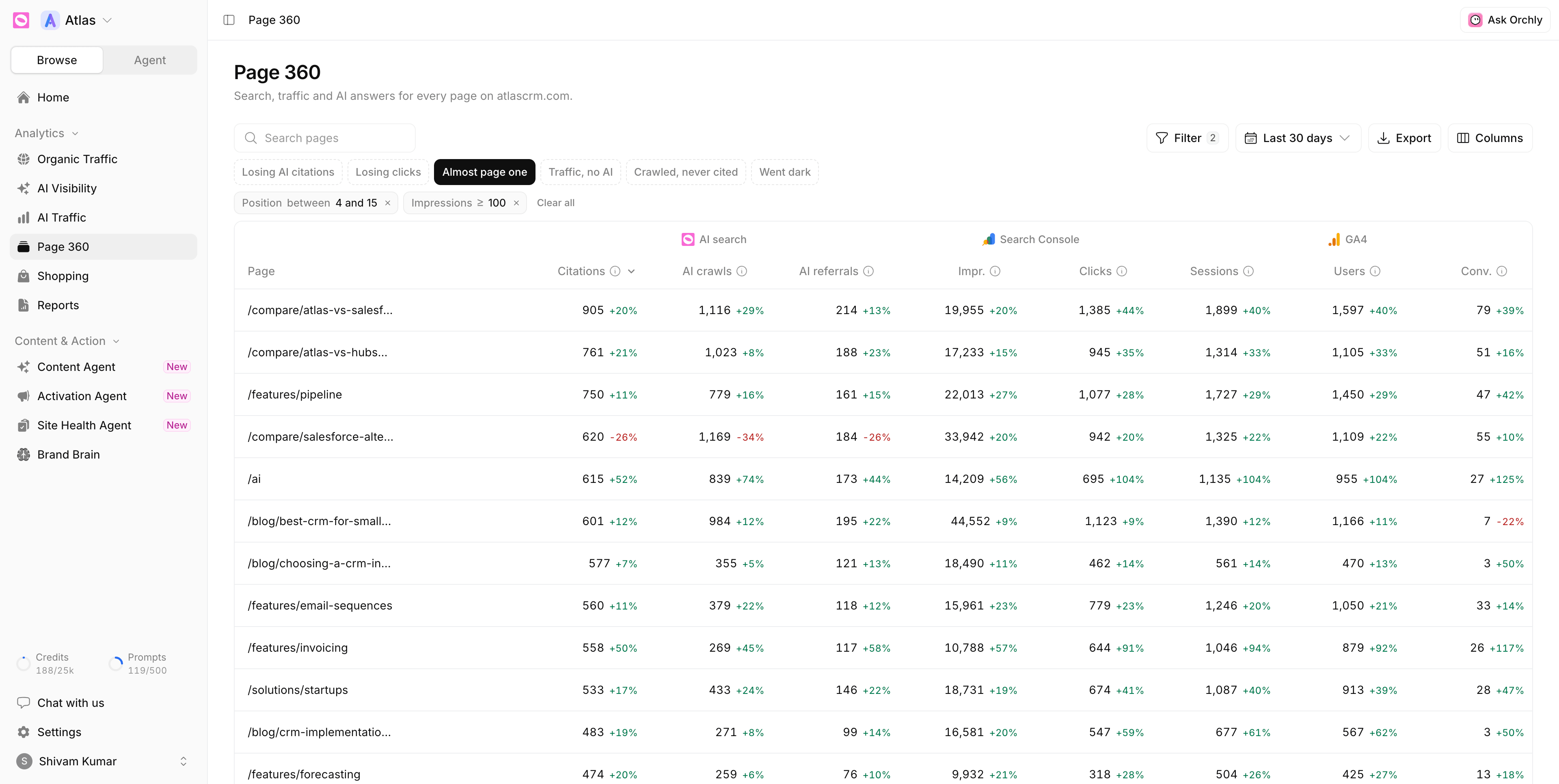
What data does Page 360 show?
Columns are grouped by where the number comes from. Use Columns to show or hide any of them.
| Group | Metrics |
|---|---|
| AI search | AI citations, AI crawls, AI referrals, Citing prompts, AI platforms |
| Search Console | Impressions, Clicks, Position, CTR |
| GA4 | Sessions, Users, Conversions, Engaged sessions, Engagement rate, Views, Revenue |
| Site Health | Health score, Issues, Critical issues, Words |
A few that are easy to misread:
- AI citations counts how many times AI answers to your tracked prompts cited the page.
- AI crawls counts visits from AI crawlers and answer engines. Search engine indexers like Googlebot aren’t included.
- AI referrals are people who reached the page from an AI answer.
- Position is average position weighted by impressions. A negative change means the page moved up.
Each number shows its change against the previous period next to it. Pick the period with the date range control (for example Last 30 days).
Each group needs its source. Connect Search Console and GA4, track prompts for AI citations, install the AI traffic tracker for AI crawls, and run a site audit for the Site Health columns.
Quick filters for pages losing ground
The row of quick filters above the table is the fastest way in. Each one answers a specific question:
| Quick filter | What it finds |
|---|---|
| Losing AI citations | Pages cited at least 3 times before, now down 20% or more |
| Losing clicks | Pages with at least 20 clicks before, now down 20% or more |
| Almost page one | Average position 4 to 15, with real impressions |
| Traffic, no AI | Google sends clicks, but AI answers never cite the page |
| Crawled, never cited | AI bots read the page and still don’t quote it |
| Went dark | Showed in Google last period, nowhere now |
Almost page one is the classic SEO quick win. Crawled, never cited is its AI search twin: the crawler got the page, so the problem is usually the content, not access.
Build your own filters
Click Filter to add conditions on any metric, the URL or the folder. Numeric filters can look at the current Value, the Change or the Previous period, so “clicks change ≤ −20%” is one condition. Active filters show as chips under the quick filters. Click a chip to edit it, or Clear all to start over.
Your filters live in the page URL. Copy the link and a teammate opens exactly the same view.
Export downloads the current view as a CSV.
Open a page for the full picture
Click any row to open the page drawer. The header shows the page’s Site Health score and the period you’re comparing.
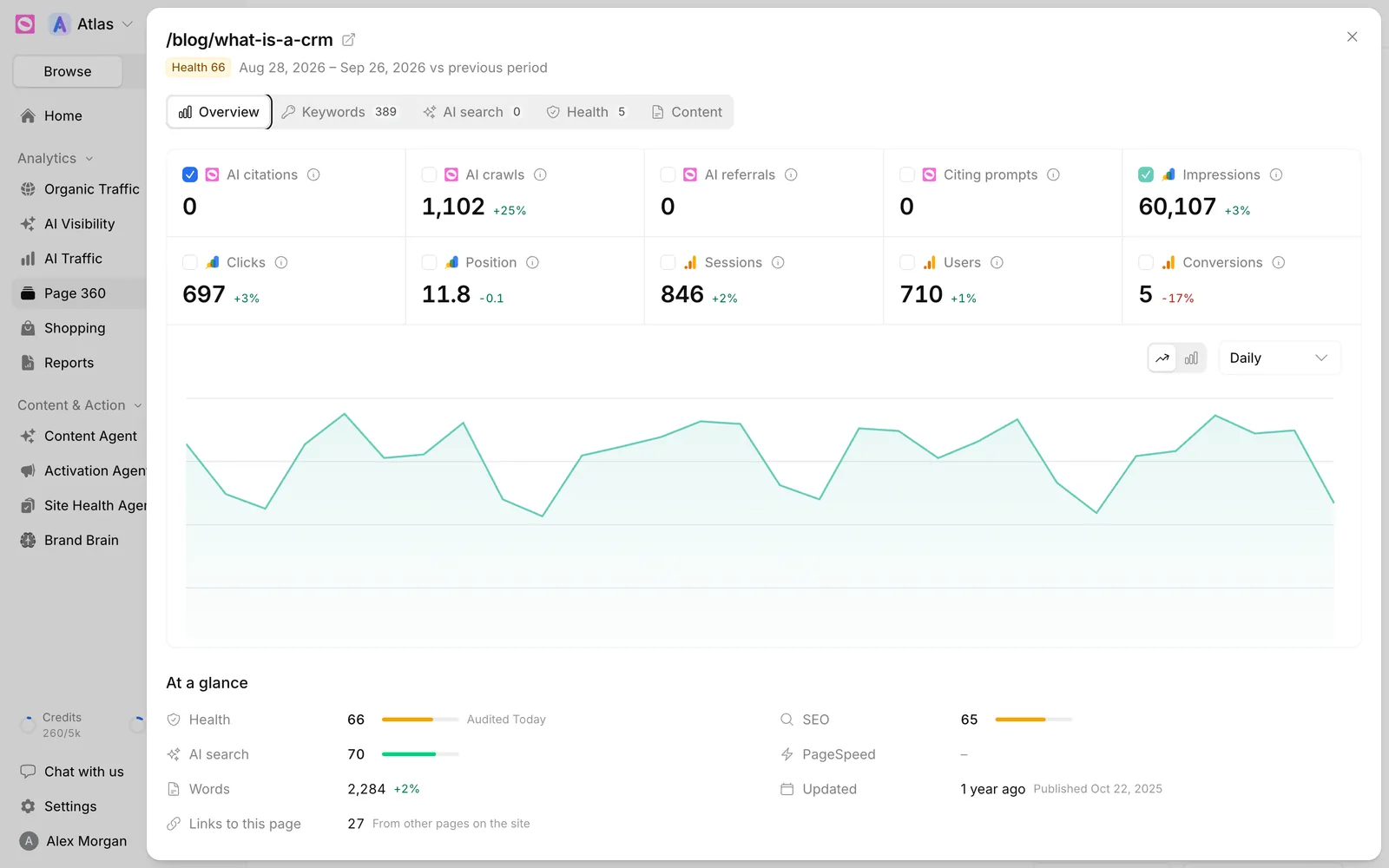
The drawer has five tabs:
- Overview: a tile for every metric. Tick tiles to plot them on the chart, daily or by another interval. Below is At a glance: Health, SEO and AI search scores, PageSpeed, word count, when the page was updated, and Links to this page from elsewhere on your site.
- Keywords: the Search Console queries the page ranks for.
- AI search: the prompts citing the page and the AI bots crawling it.
- Health: the Site Health checks this page passed and failed.
- Content: what the audit read on the page, such as title, headings and structured data.
PageSpeed shows lab scores (Performance, Largest paint, Layout shift and more) plus Real visitors, the Core Web Vitals from the last 28 days. Each audit tests your 20 busiest pages. For any other page, click Test now.
Add a page to the Site Health audit
Your plan caps how many pages each audit covers, so some pages won’t have Site Health data. On the drawer’s Health tab, click Add page to audit. The page is audited right away, and in every audit after that.
If Site Health isn’t set up yet, the same tab shows Set up Site Health instead.
What to do with what you find
- Losing AI citations: open the page’s AI search tab to see which prompts dropped it, then refresh the page with the Content Agent.
- Almost page one: add a refresh idea to the board, or check the Health tab for issues holding it back.
- Crawled, never cited: look at Answer-fit issues in the site audit. The page probably doesn’t answer a question clearly enough to quote.