How to set up AI brand monitoring prompts
Perception runs its own weekly questions about your brand and competitors. Choose platforms, competitors and your category, or add your own.
Perception prompts are Orchly’s AI brand monitoring prompts, the weekly questions it asks AI engines about your brand and your competitors. You set them up in AI Visibility → Settings → Topics & Prompts, then switch the toggle at the top right from Tracking prompts to Perception prompts.
They power everything in the Perception tab: how AI describes your brand, the objections it raises and the facts it gets wrong. And they’re free. Perception prompts sit outside your tracked prompt limit.
How do perception prompts differ from tracked prompts?
Your tracked prompts are the buyer questions you want to show up for, like “best CRM for small teams”. They measure AI visibility and share of voice.
Perception prompts ask about brands directly. “What are the strengths and weaknesses of Atlas?” “Why might a growing sales team not choose Atlas?” The answers tell you what AI thinks of you, not whether it mentions you.
Set up AI brand monitoring for the first time
If you haven’t set it up, the Perception tab shows See how AI sees your brand with a Set up perception button. The same button appears in settings when there are no perception prompts yet.
Click it and Orchly writes a small weekly set from your brand, your competitors and your Brand Brain facts, then runs it straight away. The first answers arrive within the hour.
Perception needs your own brand set in AI Visibility → Settings → Your Brand. Without it, the views show Set your brand first.
The five prompt types
Every perception prompt has a type. Each one feeds a different part of the Perception tab.
| Type | What it asks |
|---|---|
| Evaluate | Strengths and weaknesses of one brand, asked the same way for every brand |
| Objection | Why a buyer might not choose the brand |
| Head to head | Your brand against one competitor, for a real use case |
| Best for | Which product is best for one quality, without naming any brand |
| Fact | A question whose answer depends on one of your Brand Brain facts |
Evaluate prompts use the same wording for every brand, so the comparison is fair. Best for prompts never name a brand, so the Who AI names first grid shows who AI picks on its own. Fact prompts are written from the facts you’ve switched on for fact-checking in Brand Brain.
Schedule and platforms
The Schedule card has two settings.
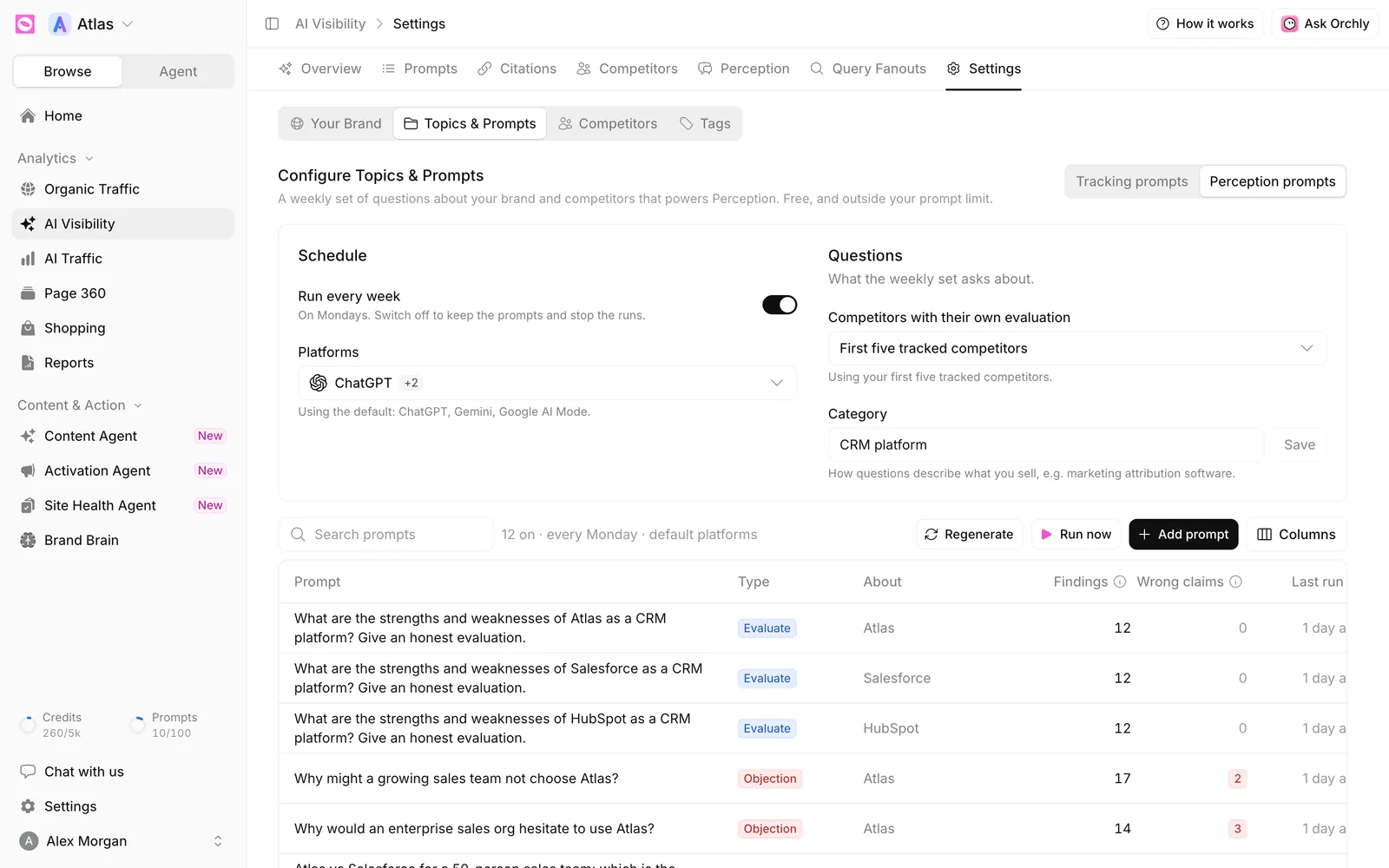
Run every week turns the weekly run on or off. The hint under it shows your run day, such as “On Mondays”. Switching it off keeps your prompts and stops the runs.
Platforms picks which AI engines answer. If you leave it alone, Orchly uses a default of three engines from your plan, listed under the field. You can choose any platform your plan includes. Gemini, Google AI Mode and Claude are paid add-ons, so they show as locked until you add them in Plan & usage.
Choose competitors and your category
The Questions card controls what the weekly set asks about.
- Competitors with their own evaluation picks which competitors get their own Evaluate prompt. By default it uses your first five tracked competitors, and you can pick up to 10.
- Category is how the questions describe what you sell, like “marketing attribution software” or “CRM platform”. Type it and click Save.
After changing either one, click Regenerate so the prompts use it. Competitors come from your competitor list, so add a brand there first if it’s missing.
AI answers depend heavily on how the question frames you. If your category says “email tool” but buyers call you “sales engagement platform”, the evaluations will compare you to the wrong set of products.
Manage the prompt list
Below the settings, a table lists every perception prompt with its Type, what it’s About, Findings (attributes, objections and claims found in its answers over the last five weeks), Wrong claims (claims your facts contradict), Last run, and an On switch.
A line above the table sums it up, for example “12 on · every Monday · default platforms”. Prompts you wrote yourself carry a Yours badge.
Three buttons sit on the right:
- Regenerate rewrites the automatic prompts from your current brand, competitors and facts. Prompts you added or edited stay.
- Run now starts a run straight away. Answers arrive over the next hour.
- Add prompt opens Add a perception prompt.
Click any row to edit its wording or delete it. Use the On switch to pause a single prompt without deleting it.
Add your own perception prompt
In Add a perception prompt, choose a Type first. The fields change with it:
- For Evaluate, Objection or Fact, pick the brand it’s About.
- For Head to head, pick a Brand and who it’s Against.
- For Best for, enter the Quality it measures, like “ease of setup”. Don’t name any brand in the prompt itself.
- Write the Prompt the way a buyer would ask it, then click Add prompt.
New prompts run with the next weekly set. A new Best for prompt also adds its quality to the Who AI names first grid.