How to get backlinks with AI link building outreach
Find pages AI already cites and competitors get links from, enrich contacts, and send value-first outreach emails from your own inbox.
To get backlinks with AI link building outreach, open Activation Agent → Backlinks. The agent lists pages that AI engines already cite for your prompts, and pages that link to several of your competitors but not to you. You shortlist the ones worth pitching, find a contact, and send a short, value-first email from your own inbox.
The goal is more than link building. A mention on a page ChatGPT or Perplexity already cites puts your brand into the AI answers built from it.
Where do backlink opportunities come from?
Two sources, both based on evidence rather than a bought list:
- AI citations: pages AI cites for your tracked prompts that name competitors but not you. If an AI engine keeps quoting a “best CRM” roundup that lists five rivals and skips you, getting added there is the most direct way into that answer.
- Competitor backlinks: pages linking to several competitors and not to you, ranked by how winnable they are.
The agent scans once a week and adds up to 25 new pages. Your own site and your tracked competitors are always excluded.
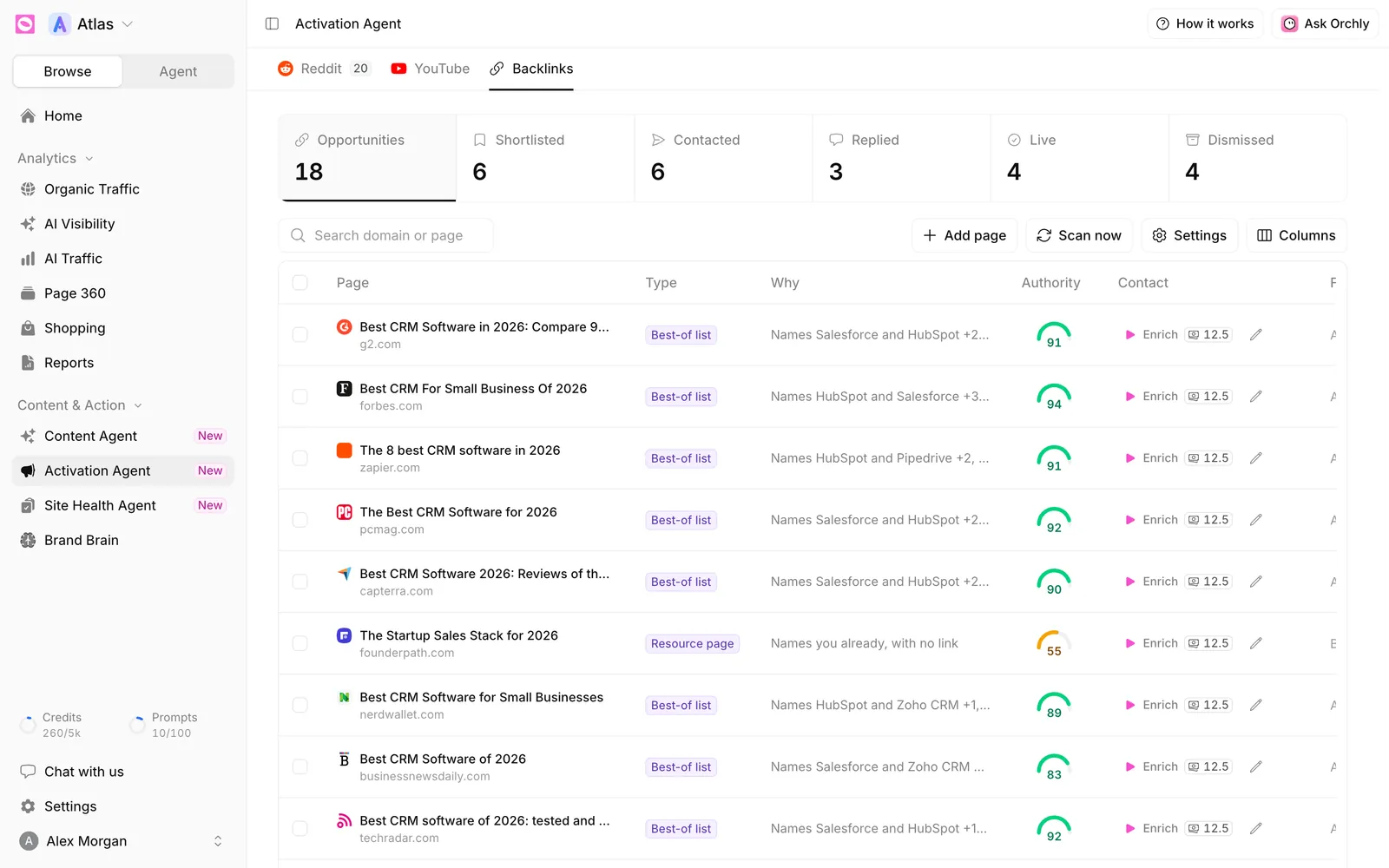
The backlink pipeline
The cards across the top follow each page from discovery to a live link:
| Card | What it holds |
|---|---|
| Opportunities | Pages the agent found. This is your inbox |
| Shortlisted | Pages you’ve decided to pitch |
| Contacted | Pages you’ve emailed |
| Replied | Prospects who wrote back |
| Live | Pages that now link to you |
| Dismissed | Pages you ruled out |
Live is the number that matters. Orchly re-checks every page you pitched each week, for up to 90 days, and moves it to Live when the link appears.
Read the Opportunities table
Each row shows:
- Page: the title and domain.
- Type: what kind of page it is, such as Best-of list, Alternatives page, Review, Resource page or Integrations page. Best-of lists are usually the most winnable.
- Why: the evidence, for example “Names Salesforce and HubSpot +2”.
- Authority: how much authority the site carries, usually its domain rating from 0 to 100.
- Contact: whether an email address is known yet.
- Found via: AI citations or competitor backlinks.
Search by domain or page, or sort by authority. Then decide what to do with each page:
- Shortlist keeps it. You write the email next.
- Not relevant drops it, and the agent stops suggesting it.
Tick several rows to shortlist, enrich or dismiss them in bulk.
Add your own pages
Already have a target list? Click Add page and paste the URLs, one per line. They go straight to Shortlisted, since choosing them was the decision. Scan now runs a fresh search without waiting for the weekly scan.
Find a contact
Emails need a recipient. Click Enrich on a row, or select several and use Enrich contacts. The agent reads the page for a printed address and looks it up further if it can’t find one there.
Each lookup costs 12.5 credits, and you’re only charged when an address is found. If you already know who to write to, use Set contact manually instead. See how credits work.
Write the link building email
Open a shortlisted page to see What we found on this page and The angle we chose, for example “Add us to the list” for a roundup that names your competitors.
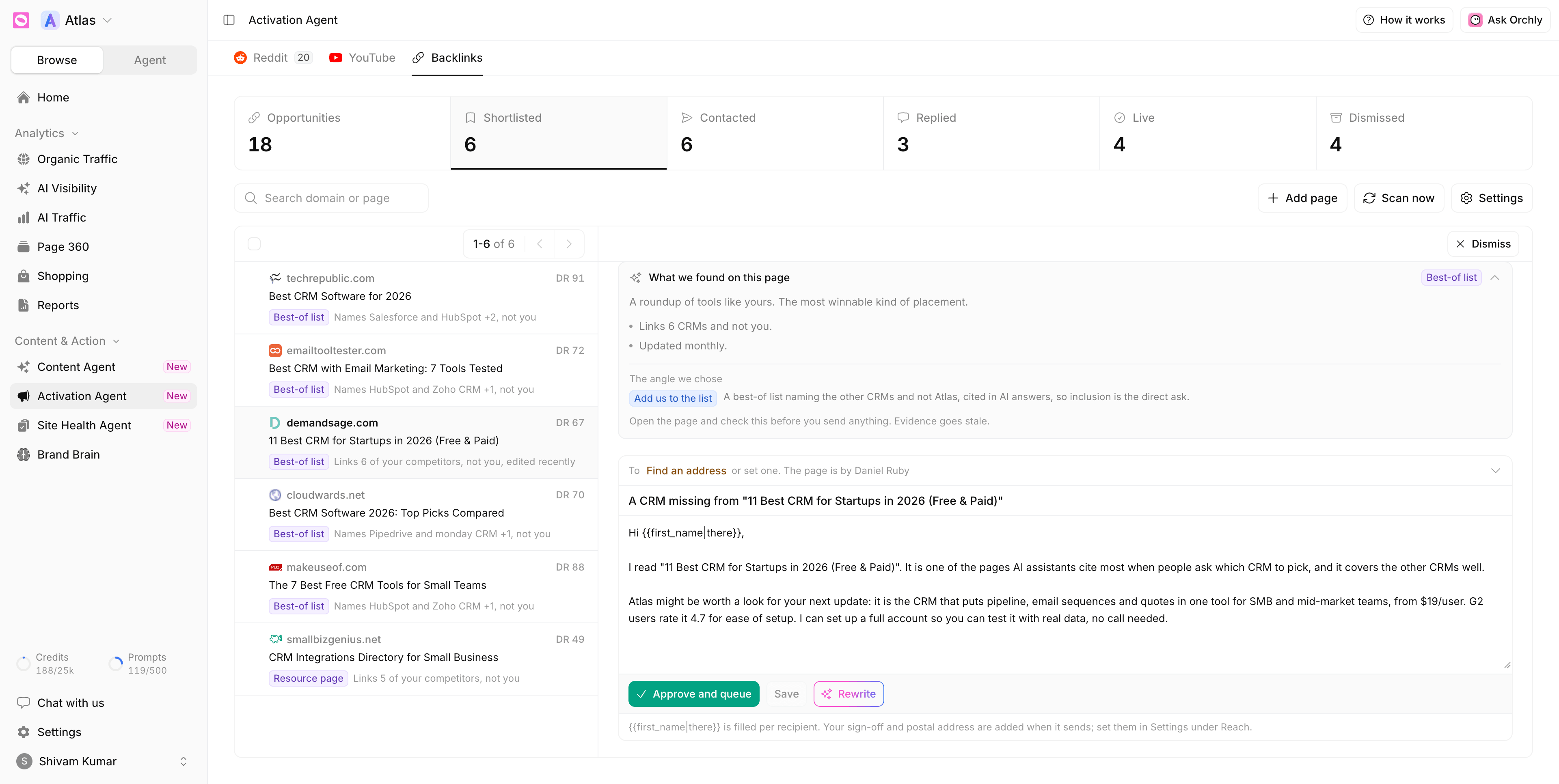
Click Write the email and the agent drafts a short pitch based on that angle. Edit anything you like. The greeting uses {{first_name|there}}, filled per recipient. Your sign-off and postal address are added automatically when it sends.
When it reads right, click Approve and queue. It goes out at your inbox’s sending pace, during working hours. Not happy with the draft? Click Rewrite.
The agent finds, reads and drafts on its own. Sending waits for your approval on each first email. Follow-ups are written later and queued automatically, so check the thread and cancel any you don’t want before they go out.
Follow-ups and replies
If there’s no reply, the agent writes a follow-up. You set how many (0 to 3, 1 by default) in the inbox settings. Queued follow-ups appear in the prospect’s thread, where you can cancel each one.
Replies arrive in your own mailbox as normal. Orchly reads the inbox too, so the prospect moves to Replied on its own.
Backlink settings
Click Settings to open Backlink settings, laid out in the order an opportunity moves:
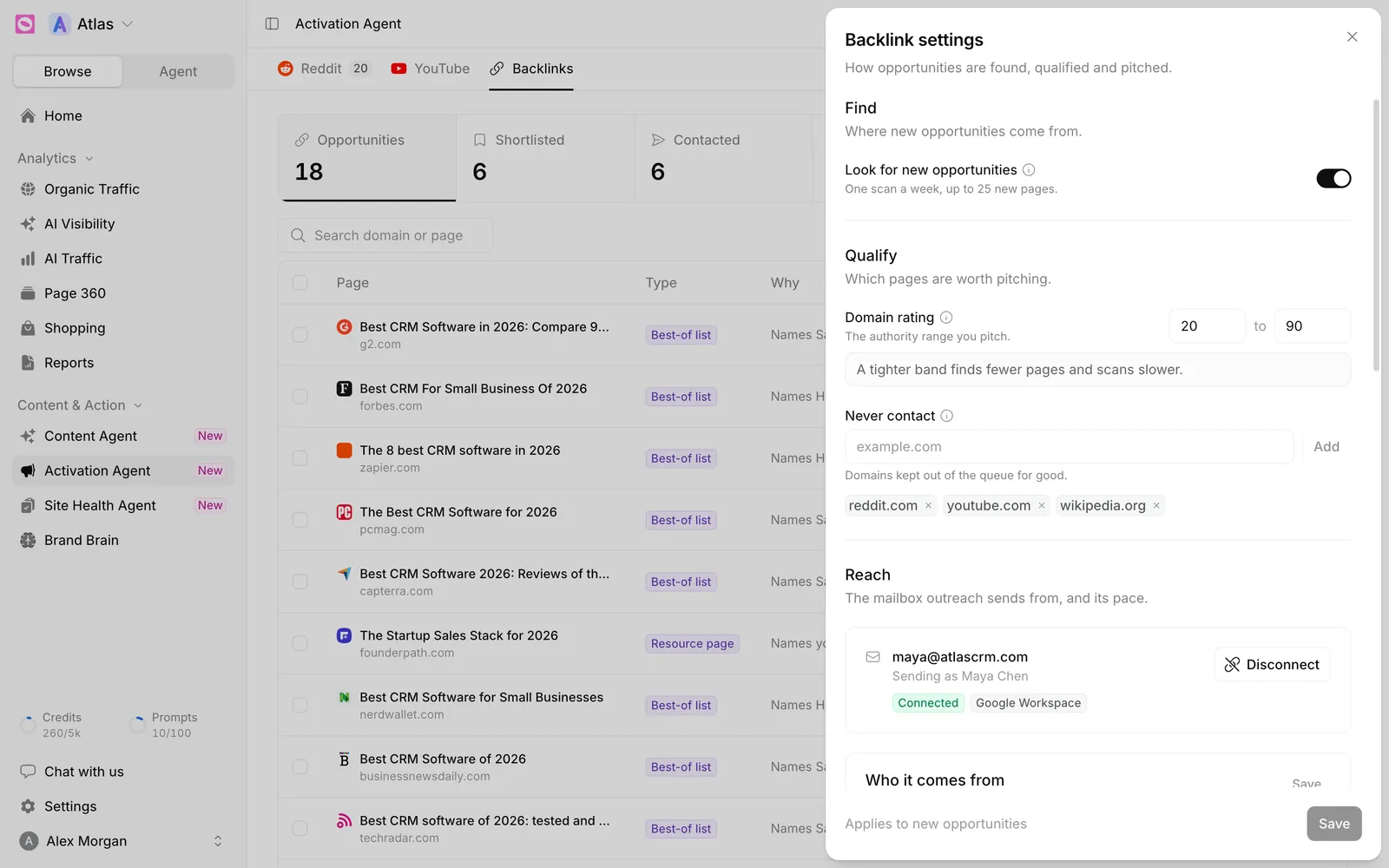
- Find: Look for new opportunities turns the weekly scan on or off. Turning it off keeps everything found so far.
- Qualify: Domain rating sets the authority range you pitch. The biggest publications rarely answer cold pitches, so a ceiling matters as much as a floor. Never contact lists domains to keep out of the queue for good.
- Reach: the mailbox outreach sends from, and its pace. See connect an outreach inbox.