How to find the right AI prompts to track
Let Orchly AI research the real questions buyers ask ChatGPT and Perplexity in your category, then review every prompt before it is tracked.
To find AI prompts to track, go to AI Visibility, open Prompts, click Add prompts and choose Research with Orchly AI. Orchly AI reads your brand, checks your own search data, looks up the questions people ask on Reddit and Google, then writes a set of prompts that sound like real buyers asking ChatGPT or Perplexity.
Nothing gets tracked until you’ve reviewed it. You can edit, drop or relabel every prompt first.
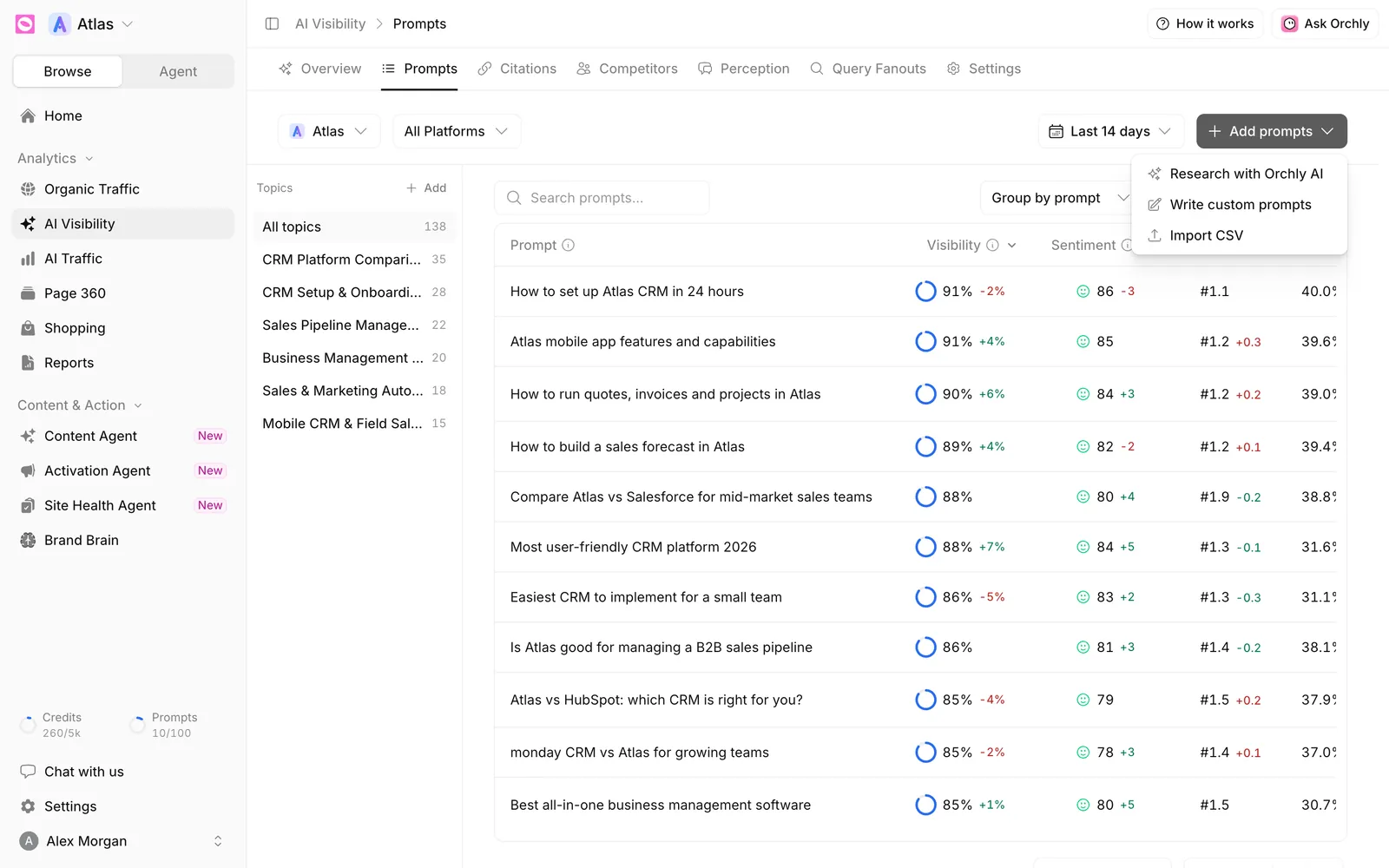
The same Add prompts button is in Settings, under Topics & Prompts.
Why research AI prompts to track instead of guessing?
The prompts you track decide every number in AI visibility. If they’re questions nobody asks, a great score means nothing.
Most teams write prompts the way they describe their own product. Buyers don’t. They ask “what’s the easiest CRM for a five-person sales team” and “is Pipedrive worth it for agencies”. Research grounds your prompt list in the words people actually use.
Where the research comes from
The progress screen walks through each stage as it runs: Reading your brand, Checking your data, Choosing topics, Finding real questions, Writing prompts and Checking the mix.
- Your brand. What you sell and who for, from your brand profile and Brand Brain.
- Your data. Question-style searches from Google Search Console, Bing, your existing query fan-outs and your Reddit listening, where connected.
- The open web. For each topic, Reddit threads and Google’s “People also ask” questions.
The more you’ve connected, the closer the prompts get to real demand. It still works on a brand-new workspace, it just leans more on the web.
Step 1: Setup
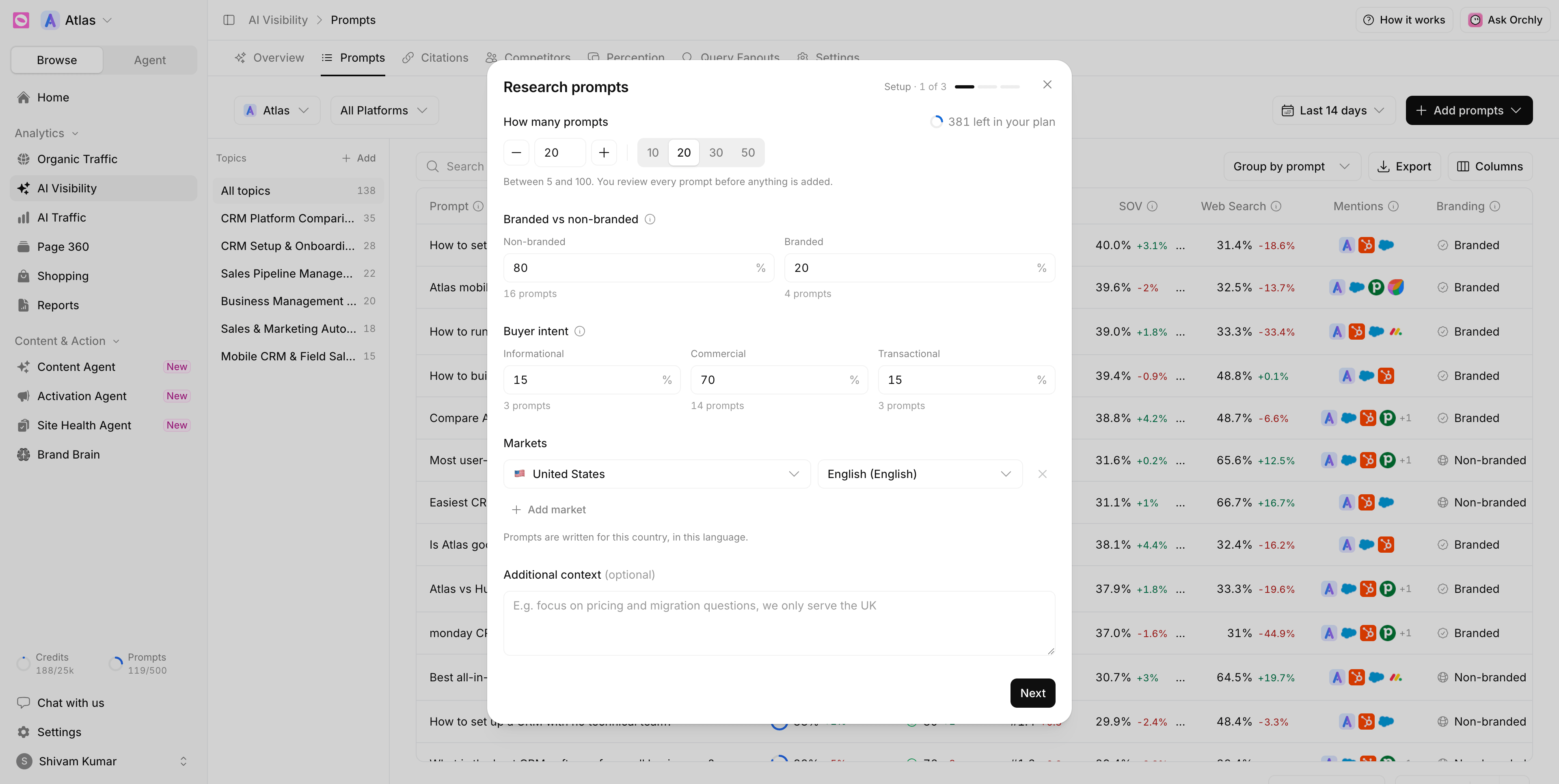
- How many prompts. Between 5 and 100. Quick picks are 10, 20, 30 and 50. The ring shows how many are left in your plan.
- Branded vs non-branded. Branded prompts name your brand. Most buyers ask without naming anyone, so the default is 20% branded.
- Buyer intent. How far along the buyer is. The default mix is 15% Informational, 70% Commercial and 15% Transactional, and it must add up to 100%.
- Markets. A country and language pair. Add up to five with Add market. With more than one, prompts are written in each market’s language and split evenly.
- Additional context (optional). Steer the research, for example “focus on pricing and migration questions, we only serve the UK”.
Click Next.
Commercial prompts, where buyers compare options, are where AI recommendations sway decisions. Keep most of your mix there, and only raise the branded share if you care about how AI answers questions about you by name.
Step 2: Topics
Orchly suggests topics under Suggested topics. Each one shows its search demand (for example “2,400 searches”) or “Suggested” when there’s no volume data, plus a short reason. Topics you already track carry a Tracked badge.
Under Your topics you’ll see your existing topics, and you can type a new one into Add a topic. Pick up to 12 topics in total, then click Research prompts.
Step 3: Review and add
When the research finishes, the prompts open in a review table grouped by topic. Each row has:
- Prompt, which you can edit in place
- Topic, Branding and Intent (both labels can be left on Automatic)
- Tags, Market and Models
Untick anything you don’t want, rename or remove topics in the left rail, and add your own rows with Add prompt. Not happy with the set? Regenerate runs the research again, which replaces your edits.
The footer shows how your plan looks after adding, for example “120 of 500 used across your workspaces after adding”. If the selection won’t fit, you’ll see “Only 12 fit your plan”, and the rest won’t be added.
Click Add prompts (the button shows your count, like “Add 40 prompts”) to start tracking. First results arrive in about 20 to 30 minutes.
Your plan’s prompt limit is shared across all workspaces in your organization. Pausing prompts you no longer need frees up room. See tag and label prompts for bulk pause.
After you add them
- Check results on the Prompts tab.
- Tag the new prompts so you can filter reports by campaign or product line.
- Run research again when you launch a product or enter a new market. Topics you already track are marked, so it’s easy to see what’s new.
Already have a list in a spreadsheet? Import prompts from a CSV file instead.