How to bulk import AI prompts from a CSV
Bulk add tracked prompts from a spreadsheet. The CSV template, every supported column, and why rows get skipped.
To bulk import AI prompts from a CSV file, open AI Visibility, go to Prompts, click Add prompts and choose Import CSV. Drop in a file with one prompt per row, check what was read, review the prompts, and add them. You can bring in up to 1,000 prompts at a time.
It’s the quickest way to move a prompt list over from a spreadsheet, another GEO tool or an agency audit.
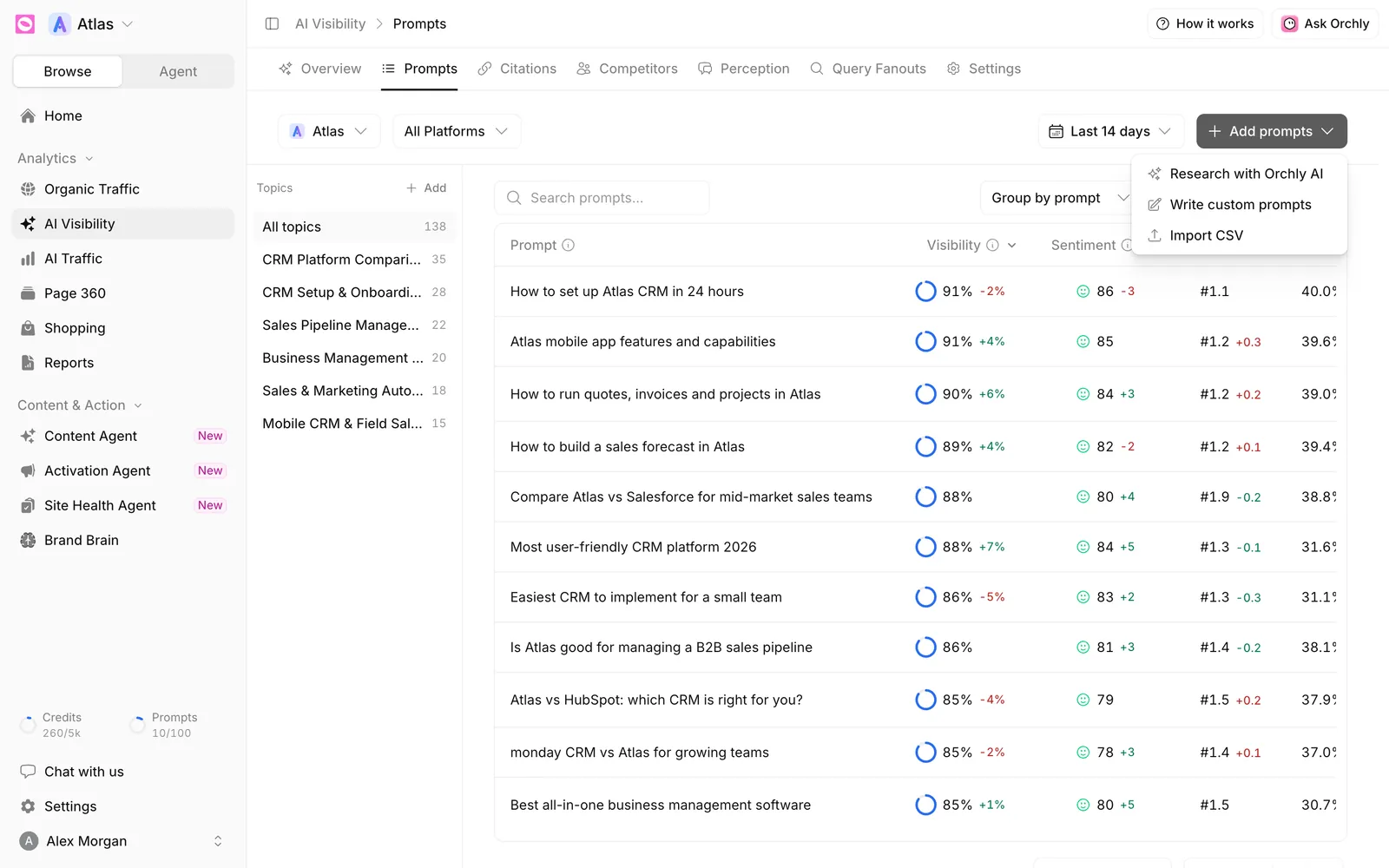
Download the CSV template for bulk import
In the Import prompts from CSV dialog, click Download template to get orchly-prompts-template.csv. It has every column and example rows showing the accepted formats, so the fastest route is to fill it in and upload it back.
File limits:
- Up to 1,000 rows and 2 MB per file.
- The first row must name the columns. Order doesn’t matter.
- Commas, semicolons or tabs all work as separators, so an Excel export in any locale is fine.
- Save as CSV (UTF-8). An .xlsx file won’t be read.
Which columns can the CSV have?
| Column | Required | What goes in it |
|---|---|---|
prompt | Yes | The question, the way a buyer would ask it. 5 to 500 characters. |
topic | Yes | A topic you already track, or a new one, which is created for you. |
country | No | A code like US or GB, or a name like United Kingdom. Blank uses your default market. |
intent | No | informational, commercial or transactional. Blank is set automatically. |
branding | No | branded or non-branded. Blank is set automatically. |
tags | No | Separate with a semicolon or a pipe character. Up to 60 characters each and 10 per prompt. New tags are created. |
models | No | Separate with ;, like ChatGPT;Perplexity. Blank uses every model in your plan. |
Common spellings work. A header called question or query counts as prompt, market counts as country, and UK, Non Branded or Google AI Overview are all understood.
A simple file looks like this:
prompt,topic,country,intent,branding,tags,models
What is the best CRM for a small sales team?,CRM software,US,commercial,non-branded,SMB,ChatGPT;Perplexity
How do I import contacts into a CRM?,CRM software,DE,informational,,,
Skipped rows and notes
After you drop the file, a summary shows three numbers: Ready to review, Skipped and Notes.
Skipped rows aren’t imported. A row is skipped when:
- it has no prompt or no topic
- the prompt is shorter than 5 or longer than 500 characters
- it repeats the same prompt, topic and country as an earlier row
- that prompt is already tracked in that topic and country
Notes are rows that were imported with a fix. For example, an unknown country falls back to your default market, an unknown intent or branding is set automatically instead, a model that isn’t in your plan is dropped, and extra tags past 10 are left off.
Each item lists its line number in the file, so you can fix the source and drop it in again.
If your CSV lists Gemini, Google AI Mode or Claude and your plan doesn’t include that add-on, it’s dropped from the row with a note. If nothing usable is left, the row uses every model in your plan.
Review and add the prompts
Click Continue (the button shows how many rows are ready, like “Continue with 40 prompts”) to open the review table. It’s the same one used for research and custom prompts, so you can:
- edit prompt text
- change topic, branding, intent, tags, market or models on any row
- untick rows you don’t want
The footer shows your plan after adding, as “120 of 500 used across your workspaces after adding”. If you’re over, Orchly tells you how many fit and the rest aren’t added.
Click Add prompts (the button shows your count, like “Add 40 prompts”). Your first results arrive in about 20 to 30 minutes, on the Prompts tab.
Put the same tag on every row of a file, like Q4 audit or Agency list. Later you can filter any AI Visibility report to just those prompts, or pause them all at once. See tag and label prompts.