How to organize AI prompts with tags and labels
Group prompts with tags, branded and intent labels, then filter every AI Visibility report by them. Plus bulk actions for pausing and moving prompts.
You organize AI prompts in Orchly with labels and tags. Every tracked prompt carries two automatic labels, Branding and Intent, plus any Tags you add yourself. Use them to filter AI Visibility reports, like “non-branded commercial prompts tagged Enterprise”, and to manage prompts in bulk.
This guide covers all three, and the bulk actions for moving, pausing and relabeling prompts.
Branding and Intent labels
Orchly labels every prompt as soon as it’s added.
| Label | Values | What it means |
|---|---|---|
| Branding | Branded, Non-branded | Whether the prompt names your brand |
| Intent | Informational, Commercial, Transactional | What the asker wants: to learn, to compare options, or to buy |
The split matters because branded and non-branded prompts behave very differently. You’ll show up in most answers to “is Atlas CRM good for small teams?” because the question names you. “Best CRM for small teams” is where buyers who’ve never heard of you pick a shortlist. Blend the two and a strong branded score hides a weak discovery score.
Intent works the same way. Commercial prompts, where people compare options, are usually the ones worth fighting for first.
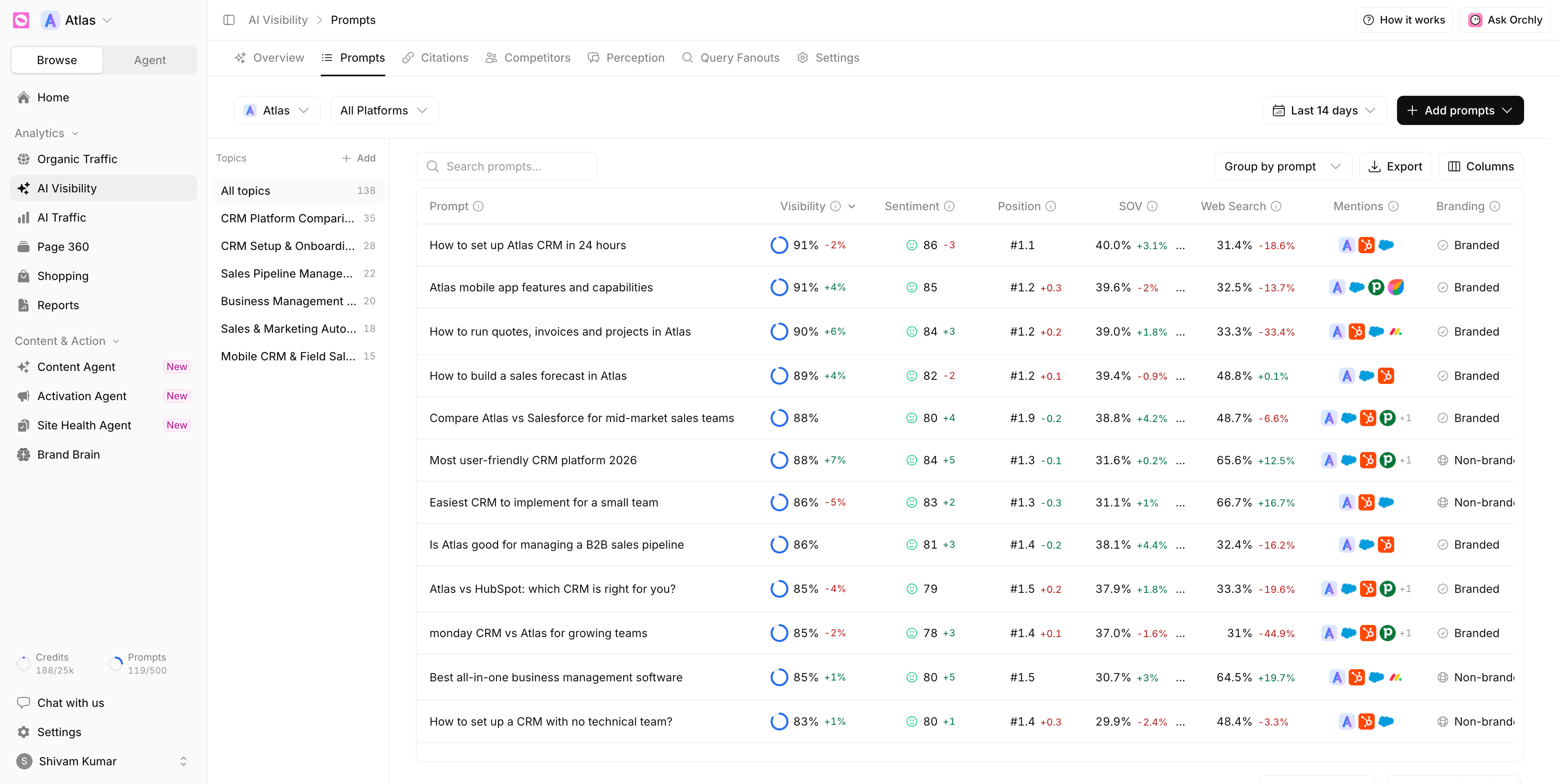
Change a label
Labels are set automatically, but you can override them. On the Prompts tab, click a prompt’s Branding or Intent cell and pick a value. The menu then shows Set by you, and your choice sticks.
To hand it back to Orchly, open the same menu and click Reset to automatic.
Create and use tags
Tags are your own labels. Use them for anything the automatic labels don’t cover: product lines, campaigns, funnel stages, a client’s priority list, or where a batch of prompts came from.
Create tags in Settings. Go to AI Visibility, Settings, then Tags. Click New Tag, type a Tag name and click Create. Each tag shows how many prompts carry it, and you can rename it, change its colour or delete it. Deleting a tag removes it from its prompts, but the prompts and their history stay.
Tag prompts in the table. On the Prompts tab, or in Settings under Topics & Prompts, hover a prompt’s Tags cell and click Add tag. Pick existing tags or type a new name to create one on the spot.
Tag in bulk. Tick several prompts, then choose Add tags or Remove tags from the bar that appears.
You can also set tags when you add prompts, in the review table or in the tags column of a CSV import.
Filter reports by tags and labels
Three filters sit next to the platform filter: All tags, All branding and All intents. The tags filter appears once your workspace has at least one tag.
They work on the Overview, Prompts, Citations, Competitors and Query Fanouts tabs, and tags also filter the Shopping pages. Pick several tags and you’ll see prompts carrying any of them.
A few filters worth saving as habits:
- Non-branded plus Commercial, for true share of voice in buying conversations.
- One product tag on Competitors, to see which rivals own that product line in the Performance Matrix.
- A campaign tag on Citations, to find the pages AI trusts for that campaign’s questions.
Bulk actions for managing prompts
Tick the checkbox on any rows in the Prompts tab, or in Settings under Topics & Prompts, and a bar of actions appears:
| Action | What it does |
|---|---|
| Add tags / Remove tags | Adds or removes tags on every selected prompt |
| Assign topic | Moves the prompts to another topic. Search for one, or type a new name to create it, then click Move |
| Set branding | Sets Branded or Non-branded, or Automatic to hand it back, then Apply |
| Set intent | Sets an intent, or Automatic, then Apply |
| Activate | Turns paused prompts back on |
| Deactivate | Pauses prompts. “They stop running until you turn them back on.” |
Pause prompts and free up your prompt limit
The Status column in Settings, Topics & Prompts, shows each prompt as Active or Paused. On the Prompts tab, paused prompts carry a Paused badge.
Paused prompts keep their history but stop running, and they stop counting toward your prompt limit.
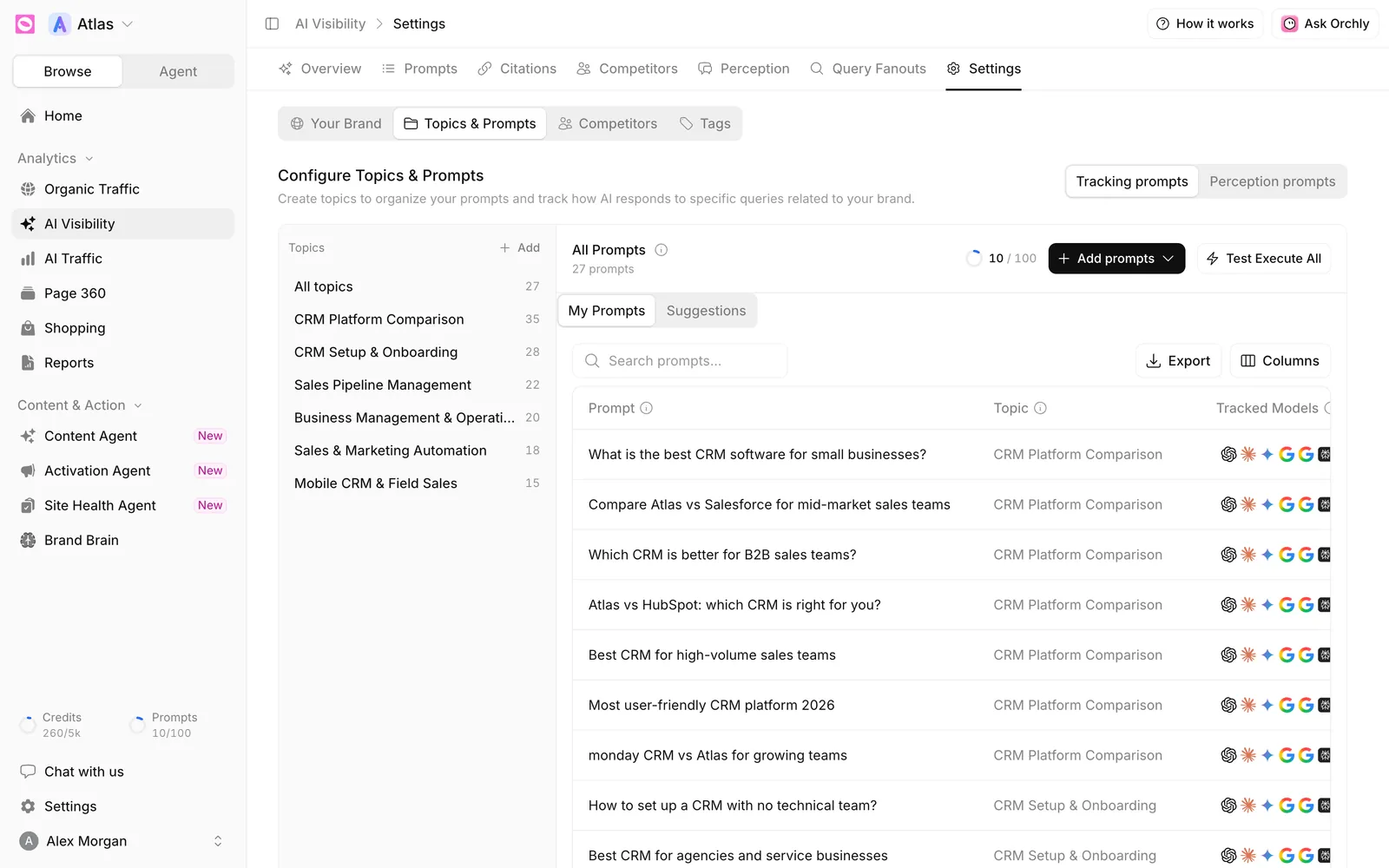
Your plan’s prompt limit covers active prompts across every workspace in your organization, not per workspace. Paused prompts don’t count, and neither do perception prompts. If you activate more prompts than your plan has room for, the extra ones stay paused and Orchly tells you how many.
A good routine is to review prompts once a quarter. Pause the ones that never produce useful answers, tag the ones tied to current priorities, and use the room to research new prompts. Need more room permanently? See billing and plans.