AI agent spreadsheet: run agents on every row
Tables are spreadsheets where an agent column runs on every row. Track pages or keywords, pull in search data, and run agents in bulk.
A table in Orchly is an AI agent spreadsheet: one or more columns are run by an agent. Put a list of pages, keywords or competitors in the rows, add an agent column, and the agent works through every row, reading its inputs from your other columns and writing the result back. It’s how you run an agent across 50 pages without starting 50 chats.
Tables live on the Agent side of the sidebar. The Content Agent board is itself a table, so everything here applies to it too.
How to create a table
- Switch the sidebar to Agent and open Tables.
- Click New table.
- Enter a Name, like “Competitor pages”.
- Under Start with, choose how it looks first: Grid, Board, Gallery or Calendar. You can add other views later.
- Click Create.
A new table “Starts with a Name and Status column and ten empty rows.” Add your own columns and agents once it opens.
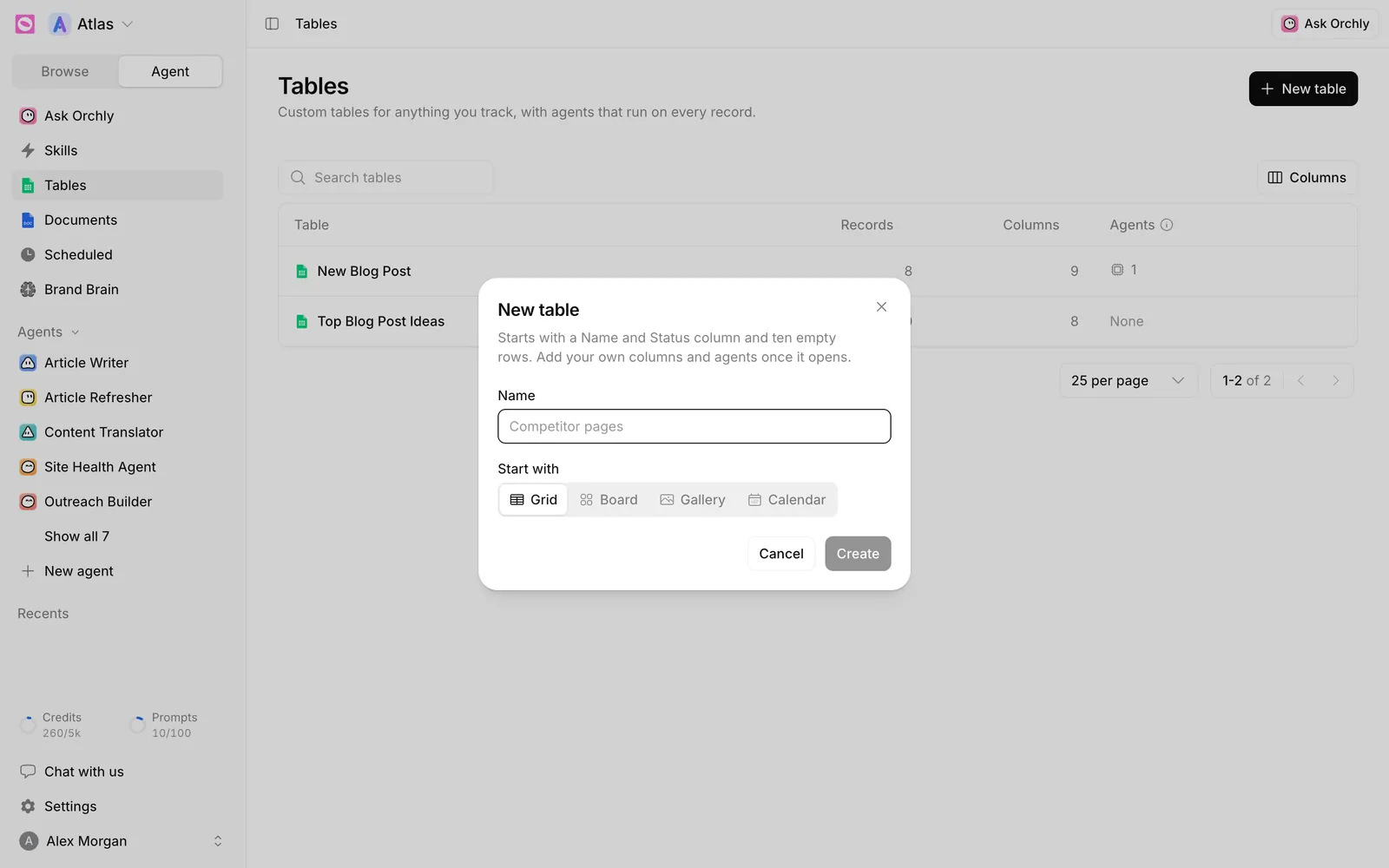
The Tables list shows each table’s Records, Columns and how many Agents run in it. Use Search tables to find one.
Tell Ask Orchly what you want to track: “build me a table of our 20 top blog posts with an Article Refresher column”. It creates the table, the columns and the agent column for you.
Column types
Click Add column in the bar above the table. The first two options, under Fills itself, are what make tables useful:
- Agent: “Runs per row, reads other columns”.
- Data source: “Search volume, difficulty and more, fetched for you”. It adds Search volume, Keyword difficulty, Cost per click, Ad competition or Search intent for the keyword in each row, from live search data.
The rest are ordinary columns: Text, Number, Select, Status, Date, Checkbox, URL, Email, Phone, Person, Files and Document. A Document column holds a draft that you or an agent can write, score and publish.
How to add an agent column
Choose Agent from Add column and pick an agent. Built-in agents carry an Orchly badge. Then set it up in three parts.
Inputs. Map each of the agent’s inputs to a column. The Article Writer’s “Primary keyword / topic” input, for example, reads from your keyword column. A required input with no column mapped means the agent can’t run.
Output. Choose where the agent writes its result. Pick an existing column or New column and a type: Document (a draft you can edit, score and publish), Text, Number, URL, Select or Date. Whatever’s in that column gets overwritten when the run finishes.
Triggers. You press Run on a row is always on. Tick On a schedule to also run it daily, weekly or monthly, and set Work through N rows each time (1 to 50). Rows the column already finished are never picked again, so it works down the table and stops when it’s done.
Click Add to table to save.
How to run an agent column
- One row: press Run in that row’s agent cell.
- The whole column: click the run button in the column header (Run [column name]). You get up to three scopes:
- Just the first N rows, to try a batch before committing.
- Retry failed, only the rows whose last run errored.
- Ready to run, everything runnable, with finished rows left alone.
The menu tells you which rows aren’t included and why, then shows Run N rows.
Agent cells show their state: Run, Queued, Running, a note like Needs plus the missing input, or Needs approval for a suggested row nobody’s approved yet.
An agent column runs once per row and each run uses credits. Try Just the first 3 or 5 rows, check the output, then run the rest. A cheaper model can also cut the cost of large tables. See how credits work.
Refresh a data source column
Search data changes over time, and new rows start empty. To fetch values, click the refresh button in the column header (Refresh [column name]), then pick Missing and out of date, Just the first N, or Every row.
Add rows for an agent
Click Add in the bar. In a table with an agent column, that opens Add rows: “Pick who does the work, then paste what they should work on.” Choose an agent and paste one item per line, like a list of URLs. Each line becomes a row, ready to run.
Approve suggested rows
Some tables get rows suggested by Orchly, like new article ideas on the Content Agent board. These show Needs approval until someone decides. Select them and use Approve N or Reject in the bar at the bottom. Once approved, “Agents can run on them now, by hand or on a schedule.”
Views, filters and grouping
The view bar at the top has filter, Group, date and Properties controls, plus Add a view for another Grid, Board, Gallery or Calendar of the same rows. A Board grouped by Status works well as a simple content pipeline.
Ideas for AI agent spreadsheets
- Page refreshes: URLs from Search Console that lost clicks, with an Article Refresher column.
- Keyword research: a keyword list with Search volume and Keyword difficulty data source columns, plus Search intent.
- Meta tags: URLs with a Meta & Schema Optimizer column writing titles and descriptions.
- Competitor pages: competitor URLs checked weekly by an agent column on a schedule.
Scheduled table columns also appear on the Scheduled page. To publish documents an agent wrote, see publish agent output.