How to fix technical SEO issues with an AI agent
Open an issue, see why it matters and which URLs it hits, then let the Site Health Agent apply the fix on your CMS or write it up for your team.
To fix technical SEO issues with an AI agent, open Site Health Agent → Issues, click an issue, and hit Fix with agent. The Site Health Agent reads the finding, checks your live site, and proposes the exact change. Nothing touches your site until you approve it, and every applied change can be undone.
Where your stack allows it, the agent applies the fix on your CMS. Where it doesn’t, it writes the fix up for whoever does the work.
The Issues tab
The Issues tab lists every finding from your latest site audit, highest priority first.
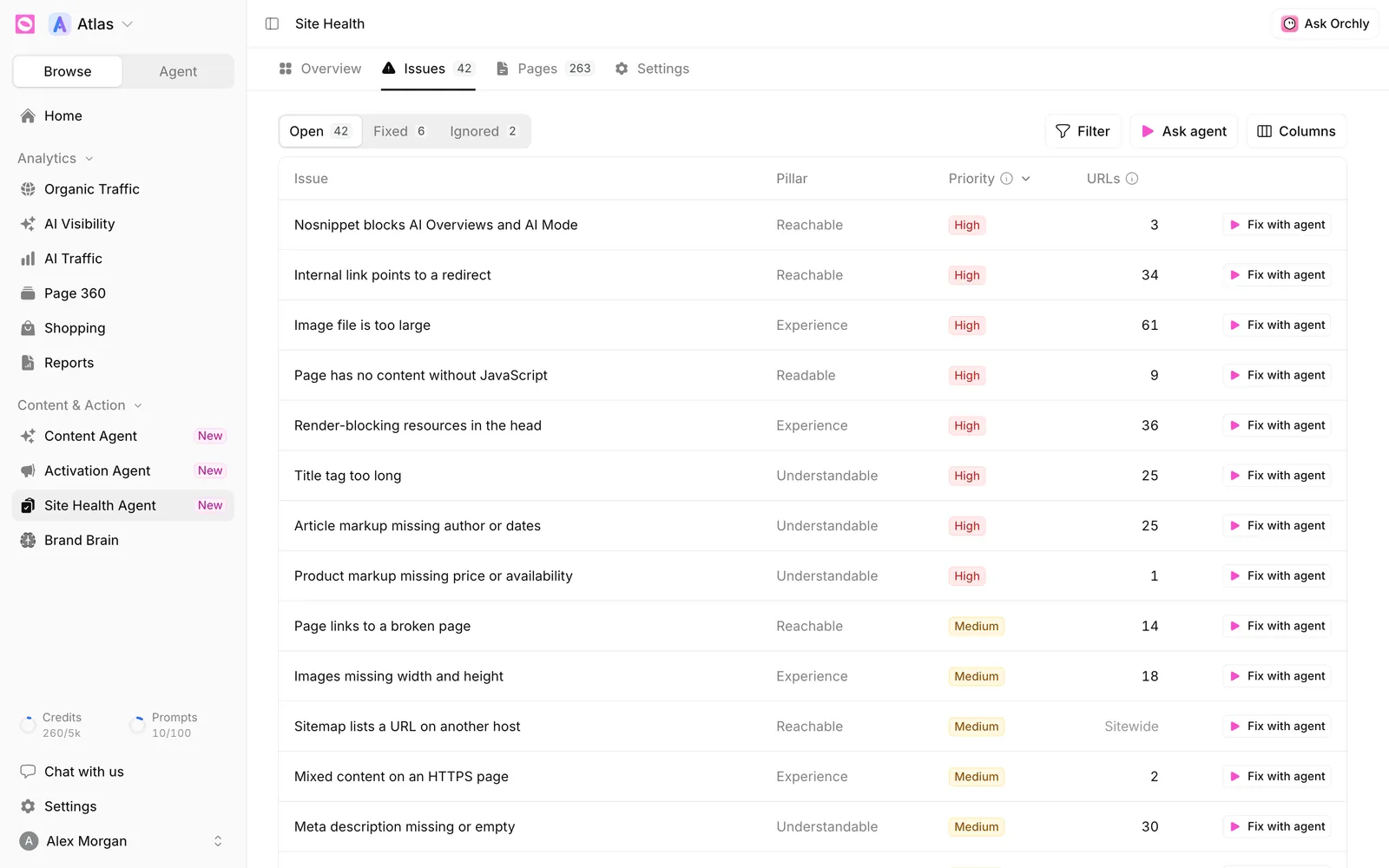
Each row shows:
- Issue: what’s wrong, in plain words.
- Pillar: which of the six audit pillars it belongs to.
- Priority: High, Medium or Low, based on what the issue costs you in search and AI answers.
- URLs: how many pages have the problem, or Sitewide when it’s one finding for the whole site.
Use the Open, Fixed and Ignored segments to switch between what’s outstanding and what you’ve already dealt with. Filter narrows the list by Priority or Pillar. Ask agent opens the Site Health Agent and asks it what to fix first, and why.
What’s in the issue drawer?
Click any issue to open its drawer. It’s laid out in the order you’d ask questions about it.
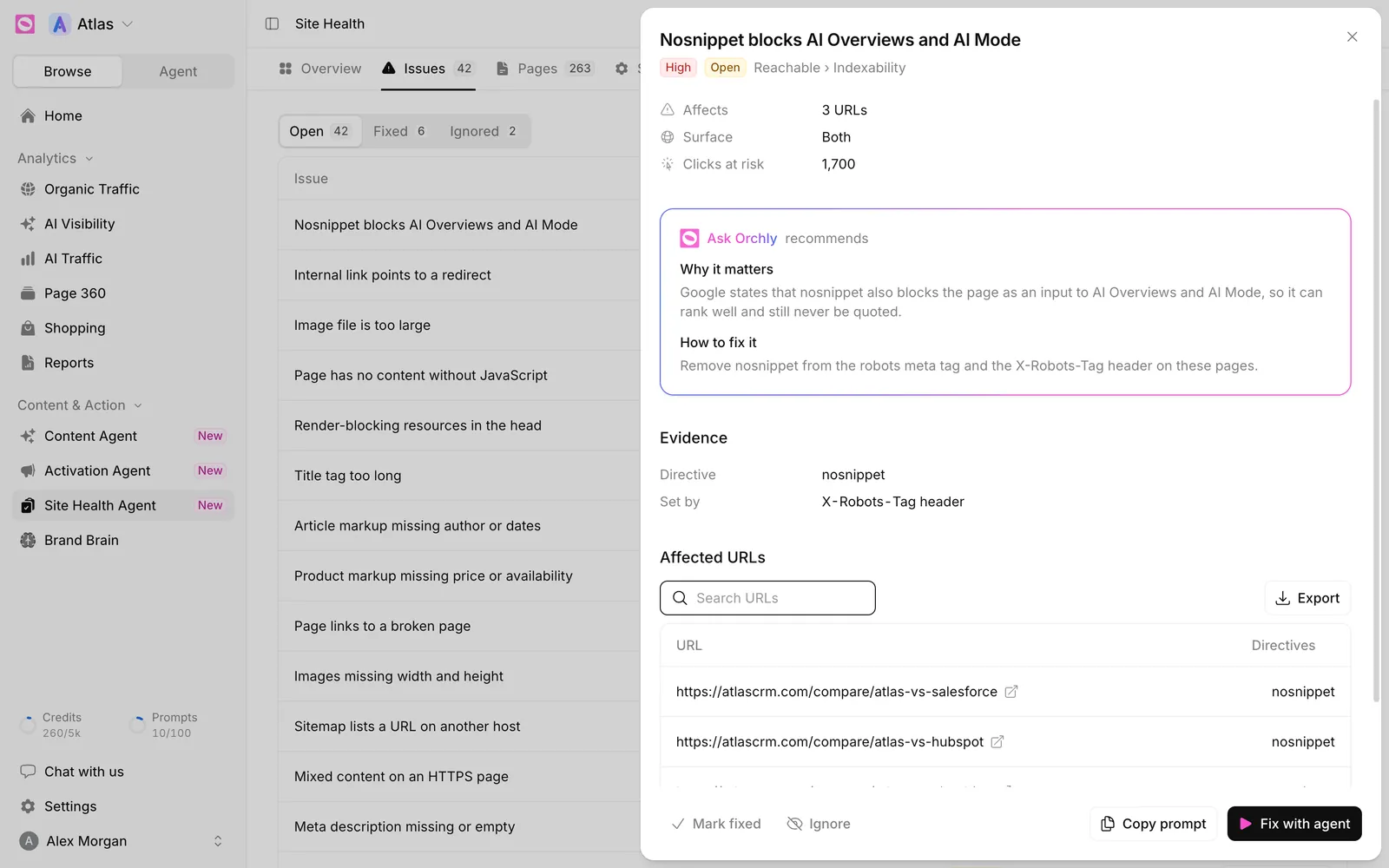
- Affects: the number of URLs, or the whole site.
- Surface: whether it hurts SEO, AI search or Both.
- Clicks at risk: the search clicks on the affected pages.
- Why it matters and How to fix it: two short explanations written for each check, so you don’t need to be an SEO specialist to act on them.
- Evidence: the measured values behind the finding, for example which directive was found and where it was set.
- Affected URLs: every page with the problem. Search it or export it to CSV.
Fix with agent: how the fix gets applied
Click Fix with agent in the drawer (or on the row). This opens a chat with the Site Health Agent, already briefed on the issue.
- The agent checks the affected pages on your live site, since things may have changed since the crawl.
- It proposes a change set and pauses. A Review changes panel shows each change: where it goes, what changes, the current value and the new one.
- Untick anything you don’t want, then apply. Click Change something instead if you want the agent to adjust the proposal first.
The panel reminds you that you can undo every change afterwards. For how approvals work in chat, see Ask Orchly.
Copy prompt copies the whole finding, with its affected URLs, as a ready-made prompt. Paste it into whatever AI tool or ticket your developers already use.
Applied changes and undo
Once the agent has applied something, the issue drawer shows an Applied changes section. Each change carries a chip:
| Chip | Meaning |
|---|---|
| Applied | The change is live on your site |
| Failed | It couldn’t be written. The reason shows underneath |
| Undone | You rolled it back |
| Edited since | Someone changed that field on the site after Orchly did |
Undo all puts every field back to the value it replaced. If a change was edited on the site since, Orchly warns you first and offers Undo anyway, so you don’t overwrite someone’s newer work by accident.
Mark fixed, Ignore and Reopen
The drawer footer also has:
- Mark fixed when you’ve fixed it yourself, outside Orchly.
- Ignore for findings that don’t apply to you. Ignored issues move to the Ignored segment.
- Reopen to bring a fixed or ignored issue back.
You rarely need Mark fixed. The agent re-checks the live site, and an issue closes on its own once its check passes on every affected URL. A complete crawl also clears open issues it no longer finds, so fixed problems don’t linger.
Choose your platform so the agent knows what it can change
What the agent can apply depends on where your site lives. Set it under Site Health Agent → Settings → Platform, then click Save.
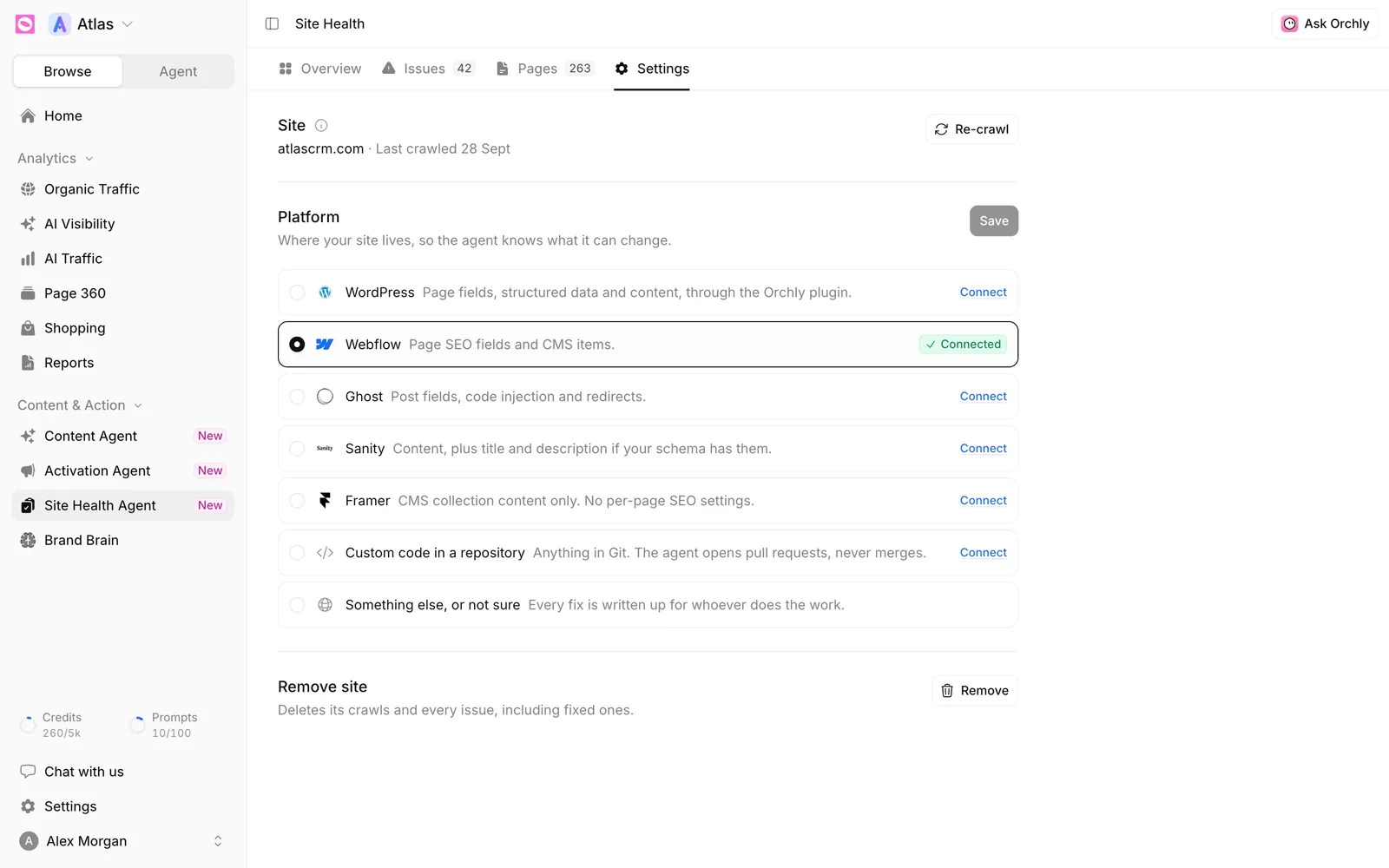
| Platform | What the agent can change |
|---|---|
| WordPress | Page fields, structured data and content, through the Orchly plugin |
| Webflow | Page SEO fields and CMS items |
| Ghost | Post fields, code injection and redirects |
| Sanity | Content, plus title and description if your schema has them |
| Framer | CMS collection content only. No per-page SEO settings |
| Custom code in a repository | Anything in Git. The agent opens pull requests and never merges them |
| Something else, or not sure | Nothing directly. Every fix is written up for whoever does the work |
Each option has a Connect link if that platform isn’t connected yet. The setup guides are here: WordPress, Webflow, Ghost, Sanity and Framer.
The button only shows on open issues. A few rows are measurements Orchly reports rather than defects, so there’s nothing for the agent to fix and no button.